What's New
v2.8.0
v2.8.0 lets a profile show the radio page and the phone page side by side, opens the Radio page even while TrackAudio is not connected, lets you replace the built-in ring chimes with your own sound files, and adds a key binding for SAY AGAIN.
A complete list of changes is available in the v2.8.0 release notes on our GitHub repository. Below is a summary of the most important changes.
Split and cycle profile views
A profile can now ask vacs to show the radio page next to your direct access keys instead of one page at a time. Your FIR decides this in the profile it publishes, so there is nothing to switch on in vacs.
In the split view, the Radio and Phone buttons in the bottom control bar become two tabs. Phone gives the phone page the whole main area, Radio puts the radio page on the left and the direct access keys on the right. In the cycle view, both buttons become one Page button with the cells R, P and M that steps through the radio page, the phone page and the mixed view of the two.
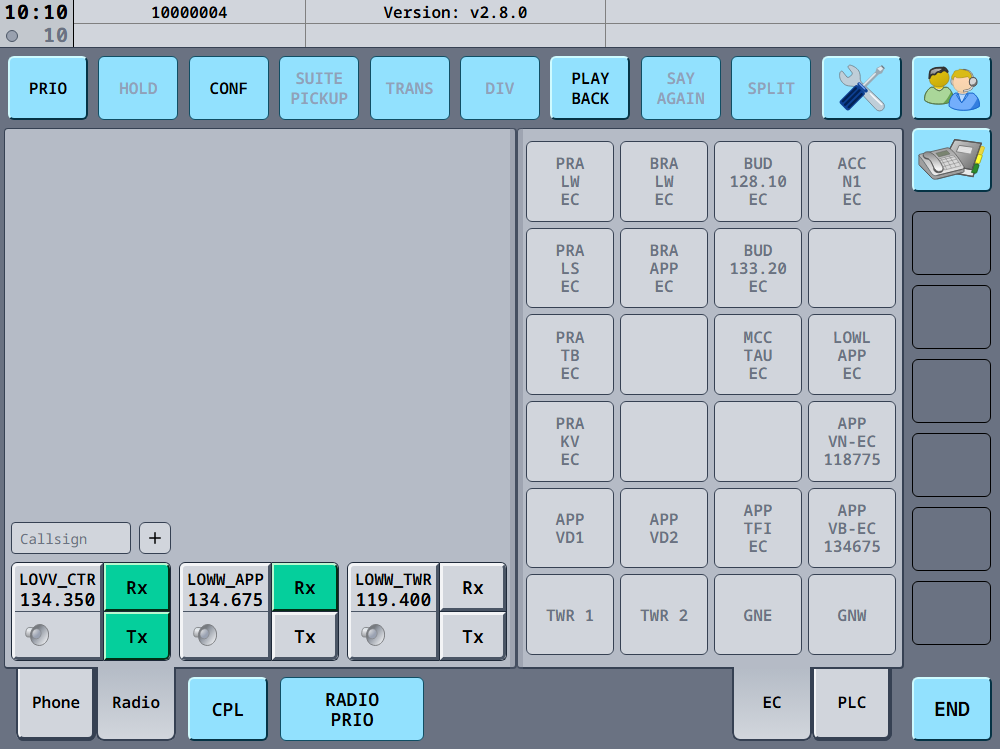
In the mixed view you can drag the divider between the two pages to give the keys more or less room, and double-click it to go back to the default of four key columns. vacs remembers the width for each profile, including after a restart.
Both views need the TrackAudio Radio Integration. With Audio for VATSIM, or without a radio integration, the profile keeps the familiar Radio and Phone buttons. See Split and Cycle Views.
Radio page without a connection
The Radio page no longer stays out of reach while TrackAudio is disconnected. It opens and tells you what is wrong, either "No TrackAudio radio connection." or "TrackAudio radio connection failed." after a lost connection, with a Retry link to try again. The Radio button in the bottom control bar is therefore no longer disabled while TrackAudio is not connected: clicking it opens the page and retries the connection in one go.
Custom ring sounds
The chime for incoming calls, and the more urgent one for priority calls, can now each be replaced with a WAV file of your own, for example the ringing tone you know from the real system at your unit. The new Ring sounds section at the bottom of the Call Settings has a field per ring: click it to pick a file, which then plays once, or click the X next to it to go back to the built-in chime. Files can be up to 30 seconds long, and vacs levels them to the built-in chime so the Chime Volume slider keeps its meaning.
A key for SAY AGAIN
The SAY AGAIN button from 2.7.0 now has a binding of its own in the Hotkeys Config, so you can replay the last radio transmission from a key or a joystick button without reaching for the mouse. A second press stops the replay, just like the button. On Wayland desktops the new shortcut appears in your desktop's shortcut settings next to the existing vacs actions: expect your desktop to ask once more whether vacs may register its shortcuts when you first start this version, and allow it, or every vacs hotkey stays inactive until the next start.
Bug fixes
- Held hotkeys repeating their action - On Windows and macOS, holding down a key bound to Accept first call, End active call or Toggle RADIO PRIO fired the action again on every key repeat, so a call could be accepted and ended in one long press. A held key now fires once.
- Hotkeys dead without a transmit key - With Push-to-Talk or Push-to-Mute selected but no key assigned to it yet, the call control hotkeys did nothing until a transmit key existed. They now work on their own.
v2.7.0
v2.7.0 adds a SAY AGAIN key that replays the last radio transmission you received, ships vacs as an AppImage for Linux, and fixes vacs failing to start on Wayland desktops without a global shortcuts portal, such as Ubuntu 24.04.
A complete list of changes is available in the v2.7.0 release notes on our GitHub repository. Below is a summary of the most important changes.
SAY AGAIN
The upper function key row has a new SAY AGAIN key, to the right of PLAY BACK. Pressing it replays the most recent radio transmission vacs recorded, from the start, without opening the Playback page. Press it again to stop the replay.

The key is available under the same conditions as the Playback page: a radio integration is configured, Enable radio playback is on in the Advanced Settings, and the radio is connected. It stays blue while the replay is playing and turns back when the clip ends. If the Playback page is open at the same time, it shows the replayed clip as the selected one, so the stop, pause and seek controls there apply to it.
See Say Again for the details.
AppImage for Linux
Besides the .deb and .rpm packages, every release now also comes as an AppImage: a single file that runs on most Linux distributions without installing anything. Make it executable and start it.
Prefer the .deb or .rpm if one fits your distribution, since they are much smaller and put vacs in your application menu. The AppImage is for everything else. See Installation for the details, including a note on starting the AppImage on Wayland desktops.
Bug fixes
- vacs not starting on Ubuntu 24.04 and other Wayland desktops without a shortcuts portal - On Wayland desktops whose portal offers no global shortcuts, for example GNOME before version 47, vacs 2.6.0 refused to start with a "Failed to register keybinds" error. It now starts normally. Keyboard shortcuts are unavailable on such desktops, and the Hotkeys and Transmit pages say so, while joystick buttons and voice activation work as usual.
- Browser login not reaching vacs on Linux - After logging in through VATSIM Connect in the browser, the
vacs://link the browser hands back was sometimes not delivered to a vacs installed from the.debor.rpmpackage, for example with a Flatpak browser, and vacs stayed on the login page. The link is now passed through the desktop entry, so the login completes. - Radio stations failing to add - Adding a station on the radio page could fail while TrackAudio was still looking it up. vacs now gives the lookup twice as long before giving up.
- Silent failures right after start - An audio device error or a login link arriving in the first moments after starting vacs could reach a part of the app that was not ready yet and fail without any visible error. vacs now skips them until startup has finished.
- Playback selection jumping - On the Playback page, a new recording arriving no longer shifts the highlight to a different clip than the one you selected.
v2.6.0
v2.6.0 lets you use joystick and gamepad buttons for every key binding, repairs calls on its own when your audio stops arriving, and brings full key binding support to Linux systems running X11.
A complete list of changes is available in the v2.6.0 release notes on our GitHub repository. Below is a summary of the most important changes.
Joystick and gamepad buttons as key bindings
Every binding field in vacs now accepts a joystick or gamepad button as well as a keyboard key. That covers Push-to-Talk, Push-to-Mute and the Radio PTT key in the Transmit Config, and accepting calls, ending calls and toggling RADIO PRIO in the Hotkeys Config.
To bind one, click a binding field as usual and press a button on your device instead of a key. The field then shows the button and the device it belongs to, for example Button 3 (VPC Throttle). Nothing needs to be installed or configured first, and devices can be plugged in while vacs is running.
This means a HOTAS throttle, a yoke, a button box or a handset can drive your calls directly, without mapping the device to a keyboard key through third party software first.
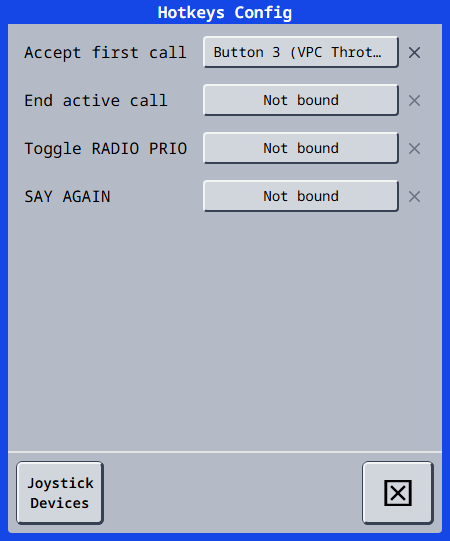
Bindings are tied to the device itself rather than to the port it is plugged into, so they survive unplugging the device, a reboot, or moving it to a different USB port.
Throttles and button boxes often have latched switches that report as permanently pressed. Such a device instantly wins any binding you try to make, and you would never get to press the button you actually wanted. The new Joystick Devices dialog, reachable from the Hotkeys Config and Transmit Config dialogs, lets you exclude those devices from binding capture while keeping any bindings you already made on them. See Joystick Devices.
Calls repair themselves when audio stops arriving
Call audio in vacs travels directly between the two controllers rather than through our servers, which keeps latency low. Some VPNs, notably Cloudflare WARP and Tailscale, break that path in one direction only: the other controller hears you, you hear nothing.
vacs now detects this. When a connected call stops receiving audio for a few seconds, it re-establishes the call through one of our relay servers, which works even when the direct path does not. The call stays up while this happens; you notice a short gap and the status indicator briefly turning orange.
Both controllers need to be on v2.6.0 or later for this to work. If the other side is on an older version, or if the call is already relayed and audio still is not arriving, vacs marks the call as degraded instead: the status indicator stays orange and a muted speaker icon appears on the affected call in the call sequence, so you can tell the difference between a quiet colleague and a broken call.
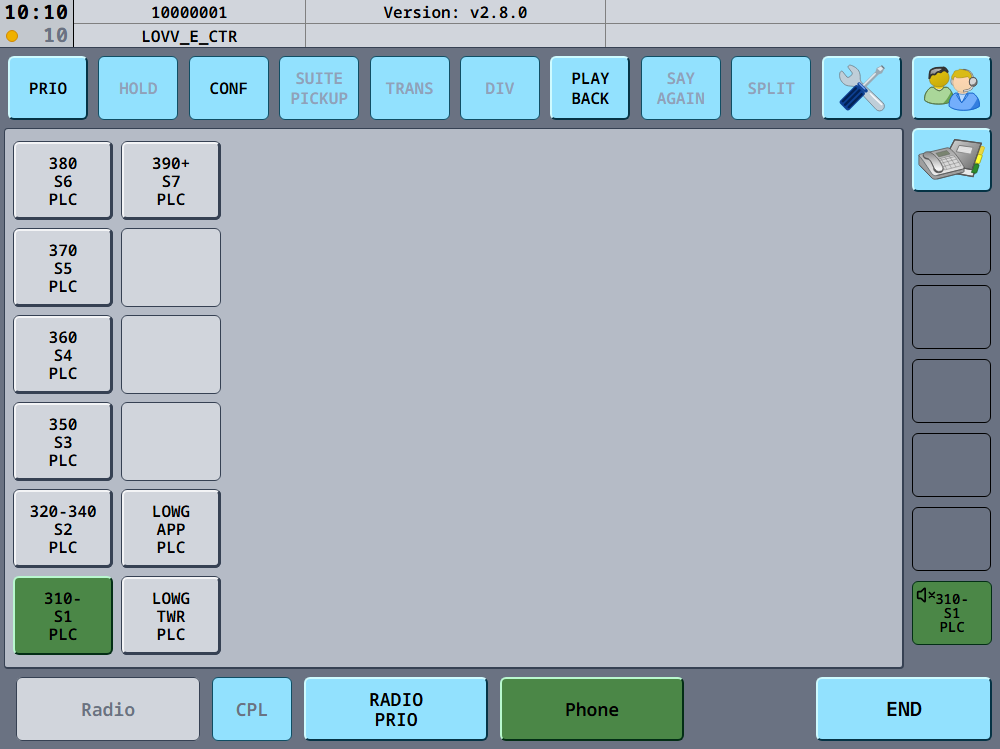
There is also a new Always relay calls option in the Call Settings, off by default. It skips the direct connection entirely and relays every call from the start. Only turn it on if you regularly have trouble hearing other controllers and cannot turn the VPN off or exclude vacs from it, since relaying adds a small amount of latency.
See One-way audio for the full picture, including what the relay servers are and what happens to audio passing through them.
Full key binding support on Linux with X11
Linux systems running an X11 session previously had no global key bindings at all, which meant Push-to-Talk and the call hotkeys did not work outside the vacs window. X11 sessions are now on par with Windows and macOS:
- Keyboard keys can be bound in vacs and work while another application is focused.
- The Audio for VATSIM radio integration is available, since vacs can now trigger the transmission key in the AFV client. Previously this integration could not be used anywhere on Linux.
Nothing needs to be installed or granted for this, it works out of the box on an X11 session.
Wayland sessions are unchanged: keyboard shortcuts are still managed by your desktop environment and Audio for VATSIM remains unavailable there, because Wayland does not permit either. Joystick buttons, however, work on Wayland too, and binding one replaces the desktop-managed shortcut for that action. See Platform support for the complete breakdown.
Bug fixes
- Silently broken radio transmissions - The radio button now turns red when your transmissions repeatedly fail to reach TrackAudio, instead of everything looking normal while your Radio PTT does nothing. Clicking it reconnects to TrackAudio and clears the transmission state. See Troubleshooting on the radio page.
- Radio page freezing - A burst of activity from TrackAudio no longer leaves the frequency and transmission indicators on the radio page stuck on old values until vacs is restarted.
- Radio left transmitting after a settings change - Changing your Transmit or Hotkeys settings while holding your Radio PTT key no longer leaves the radio transmitting, with no key left to release it.
- Dead hotkeys on KDE Plasma 6.7.4 - Every vacs shortcut stopped working on Wayland after updating to Plasma 6.7.4, and reassigning the keys or restarting vacs did not bring them back. vacs now registers its shortcuts with your desktop on every start, so they work again without downgrading.
- Key changes needing a restart - On Wayland, assigning or clearing the Radio Push-to-talk shortcut in your desktop settings now takes effect immediately instead of at the next start of vacs.
- Radio PTT ignored on GNOME - On GNOME, a Radio PTT shortcut was ignored and the radio always followed your call PTT key. It now works as documented in the Transmit Config.
v2.5.1
v2.5.1 is a patch release that fixes vacs failing to start on some Windows systems and makes vacs recover on its own when your default audio device changes.
A complete list of changes is available in the v2.5.1 release notes on our GitHub repository. Below is a summary of the most important changes.
Bug fixes
- vacs not starting on Windows - Fixed vacs failing to start when your audio device reports more than two channels, which affected setups using SteelSeries Sonar and similar virtual audio devices. This only affected v2.5.0.
- Audio stopping after a device change - Changing your default audio device in Windows no longer leaves vacs without audio. The affected audio stream is now rebuilt automatically, including when the default device changes several times in quick succession. Previously this could show an error and require a restart of vacs.
- Speaker problems ending calls - A problem with your separate speaker device no longer ends an active call. Only your main output device failing does.
Changing your output device in Windows settings while a call is active still ends that call. This is why vacs does not let you change audio devices in the settings during a call. If your system default output device changes on its own mid-call, for example because you unplug a headset, the call ends and you will need to place it again.
v2.5.0
v2.5.0 decouples radio integration from your call microphone mode, letting you combine any Call Mic Mode with any Radio Integration, and extends radio transmission playback to Audio for VATSIM.
A complete list of changes is available in the v2.5.0 release notes on our GitHub repository. Below is a summary of the most important changes.
Independent radio integration
Previously, using a radio integration (TrackAudio or Audio for VATSIM) required setting your Call Mode to a dedicated "Radio Integration" option, meaning you had to give up Voice Activation or Push-to-Mute for your calls if you wanted a radio integration active.
The Transmit Config dialog has been reworked to lift this restriction. The top dropdown, now called Call Mic Mode, controls only how your call microphone behaves (Voice Activation, Push-to-Talk, or Push-to-Mute). The Radio Integration dropdown at the bottom is always available, independent of the Call Mic Mode chosen above - so you can, for example, use Voice Activation for calls while still triggering radio transmissions through TrackAudio.
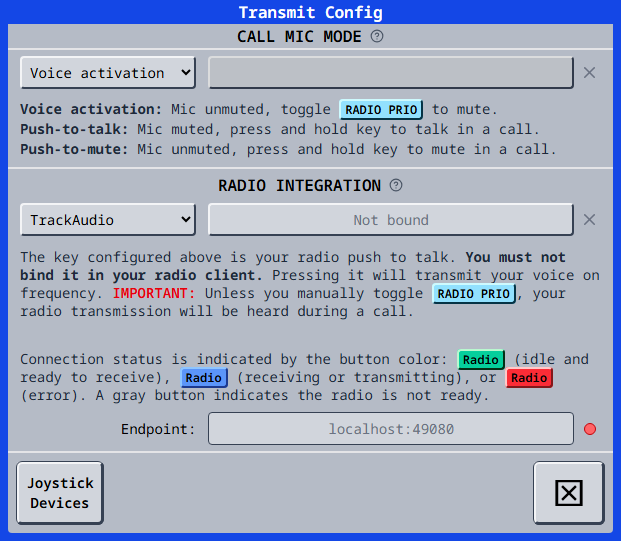
The behavior of the radio PTT key and the RADIO PRIO button now depends on the combination of Call Mic Mode and Radio Integration you choose. See the Transmit Modes documentation for a full breakdown of every combination.
Your existing configuration is automatically migrated to the new format on update. This should carry your previous setup over correctly, but given the scope of this change, we recommend checking your Transmit Config after updating to make sure it still reflects the setup you expect.
AudioForVatsim radio playback
Radio transmission playback, introduced in v2.4.0 for TrackAudio, is now also available when using the Audio for VATSIM radio integration. Enable it the same way, in the Advanced Settings.
Only RX (received) transmissions are recorded, and support is limited: since AFV does not expose per-transmission metadata, recorded clips won't show a callsign or frequency. AudioForVatsim playback recording is also only available on Windows.
Bug fixes
- Radio prio incorrectly set when ending a call while holding PTT - Fixed an issue where ending a call while holding your PTT key, then starting a new call without releasing it, could incorrectly engage RADIO PRIO even though the key was originally pressed only for the call.
- Desktop state overwritten on remote connect - Fixed an issue where the remote store sync could incorrectly overwrite the desktop state when a client connected.
v2.4.0
v2.4.0 introduces radio transmission playback for TrackAudio, a fast couple mode for faster frequency coupling, and several bug fixes.
A complete list of changes is available in the v2.4.0 release notes on our GitHub repository. Below is a summary of the most important changes.
Radio transmission playback
vacs now lets you replay recent TrackAudio radio transmissions directly from the Playback page. Once enabled in the Advanced Settings, vacs records incoming radio transmissions while TrackAudio is running and connected. You can then play them back at any time using the full set of playback controls — play/pause, skip, rewind, and continuous playback mode.
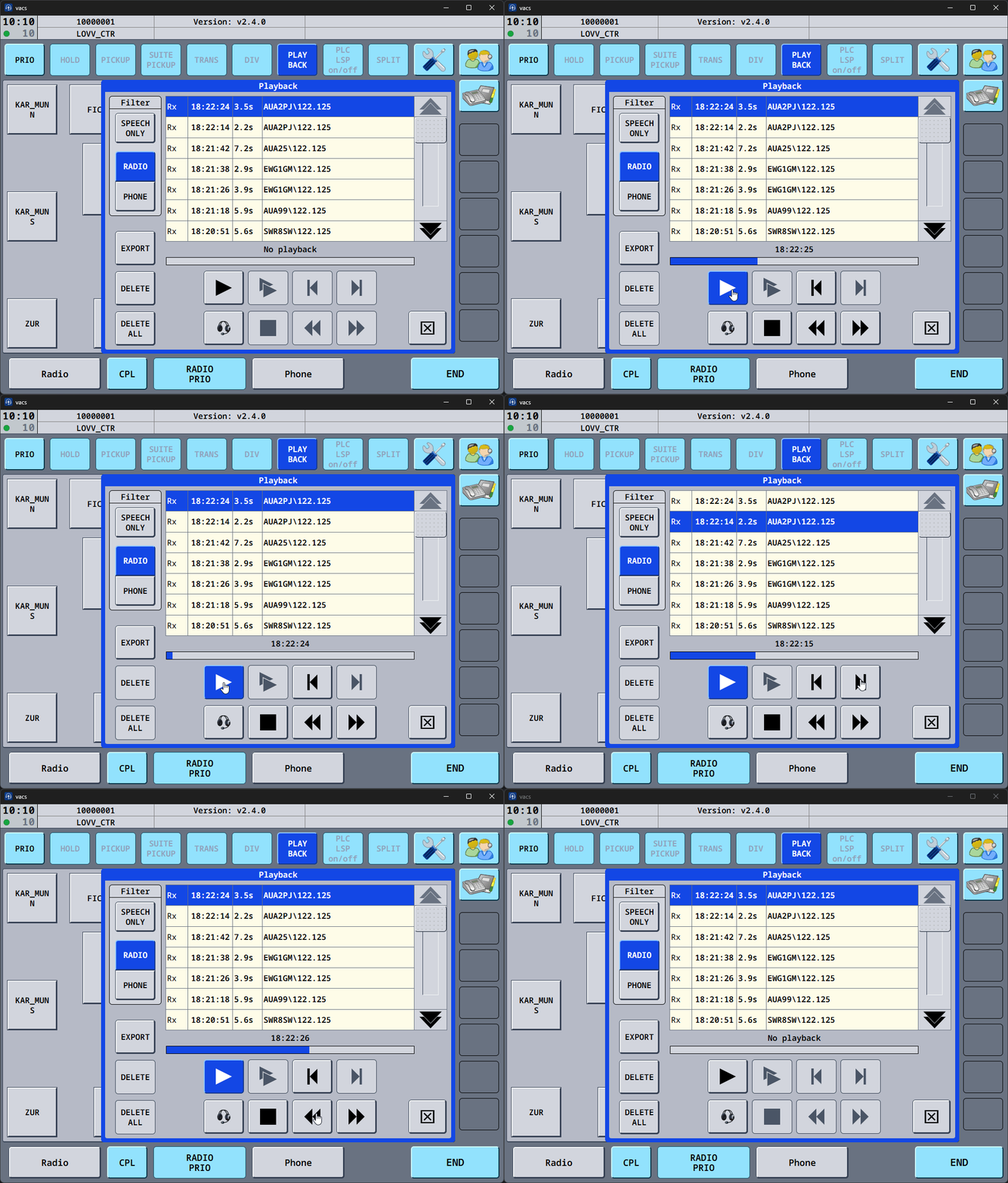
Exported recordings are saved to %LOCALAPPDATA%\app.vacs.vacs-client\playback\saved on Windows and $XDG_DATA_HOME/app.vacs.vacs-client/playback/saved (or $HOME/.local/share/app.vacs.vacs-client/playback/saved) on Linux.
Playback functionality is only available on Windows and Linux systems using PipeWire. macOS is not supported.
Fast CPL
The CPL button now supports a Fast CPL mode, configurable in the Advanced Settings. Clicking FAST CPL immediately couples all TX-enabled frequencies at once, without entering Couple Mode first. The button label changes from CPL to FAST CPL when this mode is active.
In addition, the default Original mode gains a new shortcut: double-clicking CPL while outside Couple Mode now also couples all TX-enabled frequencies at once.
Bug fixes
- Custom button border color contrast - Custom button border colors now have improved contrast, making button states easier to distinguish visually.
- Volume preview on wrong device - Fixed an issue where the volume preview sound played through the incorrect audio output device.
- Page navigation on menu open/close - Fixed unintended page navigation triggered when opening or closing menus.
- Decimal values in GEO_PAGE_CONTAINER_SIZE - The
GEO_PAGE_CONTAINER_SIZEconfiguration parameter now correctly accepts decimal values. - ATIS callsign support - The radio page callsign validation now correctly recognizes callsigns with an ATIS suffix.
- Incorrect app data path on Windows - Fixed an issue where vacs resolved application data to the roaming profile directory instead of the local app data directory on Windows.
v2.3.0
v2.3.0 introduces TrackAudio radio integration, call status tracking in the history list, and several stability fixes.
A complete list of changes is available in the v2.3.0 release notes on our GitHub repository. Below is a summary of the most important changes.
TrackAudio radio integration
vacs now includes a dedicated Radio page that connects to TrackAudio and lets you manage your radio stack without leaving the vacs window. From the Radio page you can see all currently tuned frequencies, toggle receive and transmit on individual frequencies, and manage your station list - all in one place.
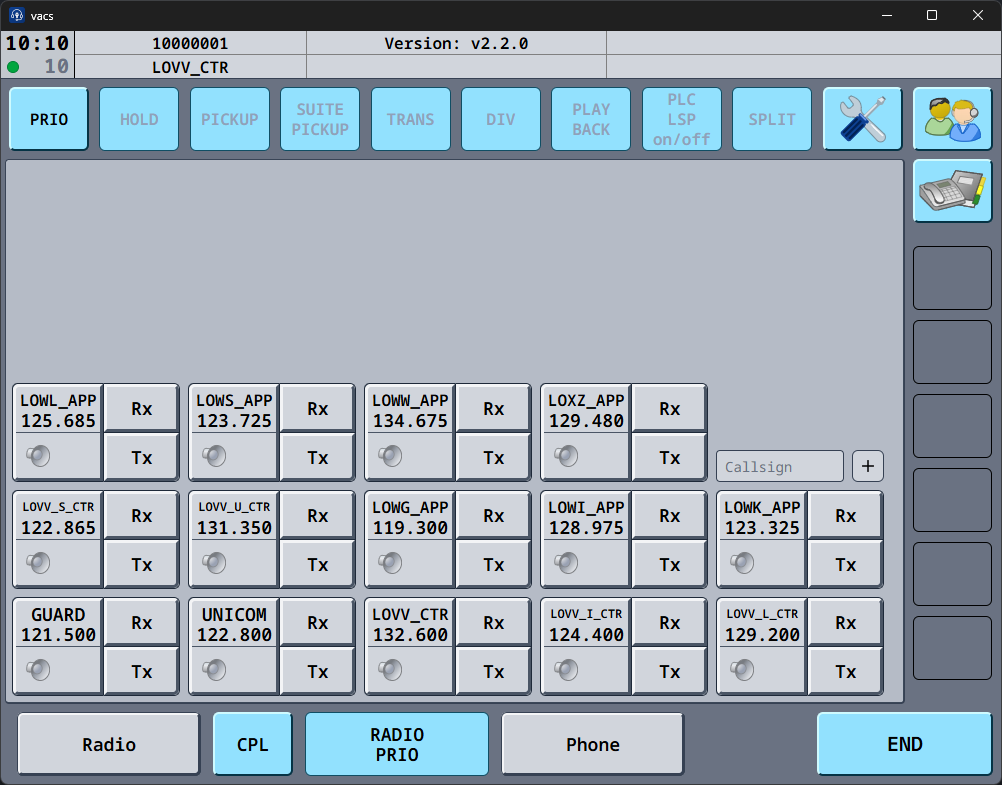
The Radio page is only available when TrackAudio is running and connected. If you are using Audio for VATSIM (AFV) or another transmit mode, the page remains inactive.
Call status in the call history
The call history list now shows the outcome of each call at a glance. Each entry is marked as accepted, rejected, or not answered.
Login confirmation page
After completing VATSIM Connect login in the browser, you are now shown a clear confirmation page confirming that login was successful, instead of a blank screen.
Bug fixes
- DA keys not callable until reconnect - Fixed a server-side issue where station coverage was not correctly updated when a controller changed position, causing neighboring controllers to see your DA keys as inactive until a reconnect. This was a persistent issue that continued to affect some setups after v2.1.0.
- Empty stations list when connecting early - Connecting before the VATSIM datafeed had registered your own frequency no longer results in an empty initial stations list, further improving the online state of other controllers around you.
- "Use default call sources" not applied on first startup - The automatic default call sources setting now correctly takes effect when connecting for the very first time after a fresh install.
- DA subpage buttons missing color - Buttons on DA key subpages now correctly display their assigned background color.
- UI freezes on Linux (Wayland) - Fixed random interface freezes when running vacs under a Wayland compositor.
- Missing call sounds after reconnect - Call start and end sounds now play correctly when a reconnect happens during an active call.
- Audio device fallback - Fixed an issue where the playback device fallback logic could select the wrong output when the primary device became unavailable.
- Call display not updating on remote control - Fixed the active call display on the remote control not clearing correctly when a call ended with an error.
v2.2.0
v2.2.0 brings custom button colors, a dedicated speaker output for ringtones and UI sounds, improved list scrolling, and more reliable audio device handling.
A complete list of changes is available in the v2.2.0 release notes on our GitHub repository. Below is a summary of the most important changes.
Custom button colors
Station buttons on both the GEO and Tabbed layouts can now display custom background colors. Dataset maintainers for your FIR can assign colors from a curated palette to individual buttons, making it easier to visually group or distinguish stations at a glance.
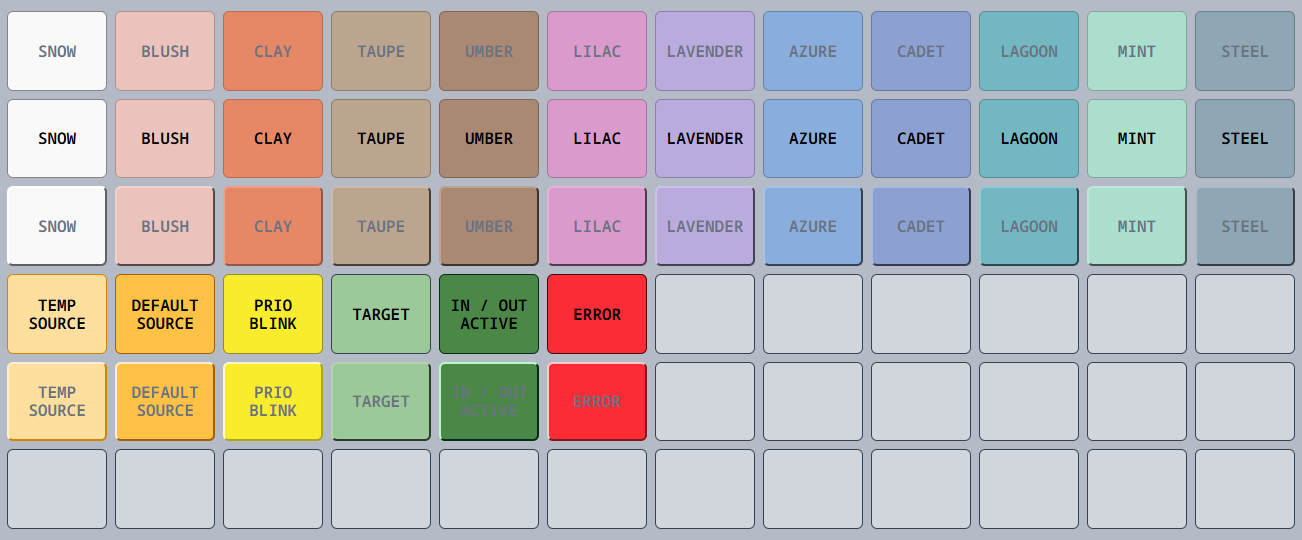
Separate speaker device for ringtones and UI sounds
You can now select a separate audio output device for ringtones/chimes and UI click sounds, allowing you to separate coordination audio from notifications.
The new speaker device can be configured in the Audio Settings. If no separate speaker device is selected, all sounds will continue to play through your main headset output as before.
Improved list scrolling
Scrollable lists throughout vacs, such as the Telephone Directory and the call history, now feature significantly improved scrolling. Holding a scroll button triggers continuous scrolling instead of requiring repeated clicks, and a visible scrollbar shows your current position within the list. You can also drag the scrollbar to quickly navigate through long lists.
Improved audio device handling
Audio device selection is now more reliable across application restarts. vacs now identifies devices by a unique device ID rather than just the device name, which prevents issues when multiple devices share similar names or when devices are reconnected in a different order. On Linux, ALSA device detection has also been improved to avoid issues with exclusive audio devices.
Your existing device selections will be migrated automatically.
v2.1.0
v2.1.0 adds remote control support, new integration options for third-party developers, and several quality-of-life improvements.
A complete list of changes is available in the v2.1.0 release notes on our GitHub repository. Below is a summary of the most important changes.
Remote control
The headline feature of v2.1.0: you can now control vacs from a browser on any device. Open the remote control URL on a tablet, a second monitor, or even your phone, and you get the full vacs interface - make and receive calls, change your settings and interact with the application - all without touching the main window.
This is especially useful if you don't want to use your primary screen for coordination and want a dedicated panel on a separate screen or tablet. See the Remote Control guide to get started.
Additionally, v2.1.0 exposes a WebSocket-based remote control API that third-party tools and developers can use to interact with vacs programmatically. A detailed spec of the Remote Control API is available for developers.
Automatic default call source
When connecting to a position, vacs can now automatically set your default call source based on the position you are logged in with. This is configured in the dataset by your vACC and means you no longer need to manually select a call source at the beginning of each session in most cases.
If the automatic selection doesn't match your preference, you can still override it at any time by manually selecting a different call source. The feature can also be disabled entirely in the Call Settings.
Station assignment on GEO page buttons
Users of our GEO layout will be happy to know that buttons on the main page can now be directly assigned to stations, allowing for quick calls right from the geographic, customized layout. This gives FIR dataset maintainers additional flexibility in creating intuitive, custom call interfaces for their controllers.
Token-based authentication for third-party clients
Developers can now authenticate against the vacs signaling server using VATSIM OAuth Access Tokens, enabling fully custom third-party clients that integrate with the vacs backend without needing to run the vacs desktop application locally. This opens the door for community-built tools and alternative interfaces.
Other improvements
- Clock now shows seconds - The clock in the top status bar now displays seconds for more precise time tracking. Clicking the clock toggles between realtime updates (every second), a "zen" mode that only updates every 10 seconds, and the previous current day display.
- Sorted telephone directory - The Telephone Directory is now sorted by position ID, making it easier to find specific stations.
- Persisted zoom level - Your window zoom level is now saved and restored across restarts. Previously, adjusting the zoom with
Ctrl +/Ctrl -would reset when you closed and reopened vacs.
Bug fixes
- Automatic session recovery on connection loss - If your internet connection drops briefly, vacs now automatically terminates the old session and reconnects cleanly. Previously, a flakey connection could result in an "already logged in" error that required manual intervention.
- Fixed station handoffs - When a controller changes position or goes offline, all other controllers should now see consistent updates to station coverage. No more relogs required for others to correctly appear as online or offline on vacs.
- Consistent phone button state during calls - Fixed an issue where a phone button could blink in an inconsistent state when an outgoing and incoming call overlapped. Outgoing call state now correctly takes priority.
- Duplicate clients after VATSIM sync - Fixed a bug where clients could appear multiple times on the client page if they changed position of primary frequency.
v2.0.0
v2.0.0 is a major release featuring a completely reworked calling system and a brand-new interface.
A complete list of changes is available in the v2.0.0 release notes on our GitHub repository. Below is a summary of the most important changes.
Station-based calling
The biggest change in v2.0.0 is how you initiate calls.
Previously, you would select a specific client - a VATSIM controller connected to vacs - to call. This meant you had to know which controller was responsible for a certain sector and find them in the list of connected clients. While already an improvement over the TeamSpeak and Discord workarounds, this was still cumbersome and different from how real-life coordination works.
In v2.0.0, you now call a station instead. Simply select the ATC station you want to reach (e.g., "TWR LOWL", "N1 ACC", "DEL LOWW"), and vacs will automatically route your call to the controller currently in charge of that station. Top-down coverage and sector inheritance typical to VATSIM are handled automatically, ensuring your call always reaches the right person. If a station is covered by multiple controllers (e.g., during a coordinator/mentoring session), they will all receive the call and can choose to answer it. Note that this is not a conference call - only one controller can answer and receive it.
This brings coordination much closer to its real-life equivalent - you dial a position rather than a specific person.
Additionally, you can now select the station you are calling from. This gives the recipient more context, indicating which region they should expect to coordinate with you on.
- Single click on a station you control sets it as a temporary call source. Your next call will originate from this station, then reset automatically.
- Double click (clicking the same key again) sets it as the default source, which persists across calls.
- Clicking again unsets it.
You can have both a temporary and a default source selected at the same time. The temporary source takes priority for the next call and then reverts to the default.
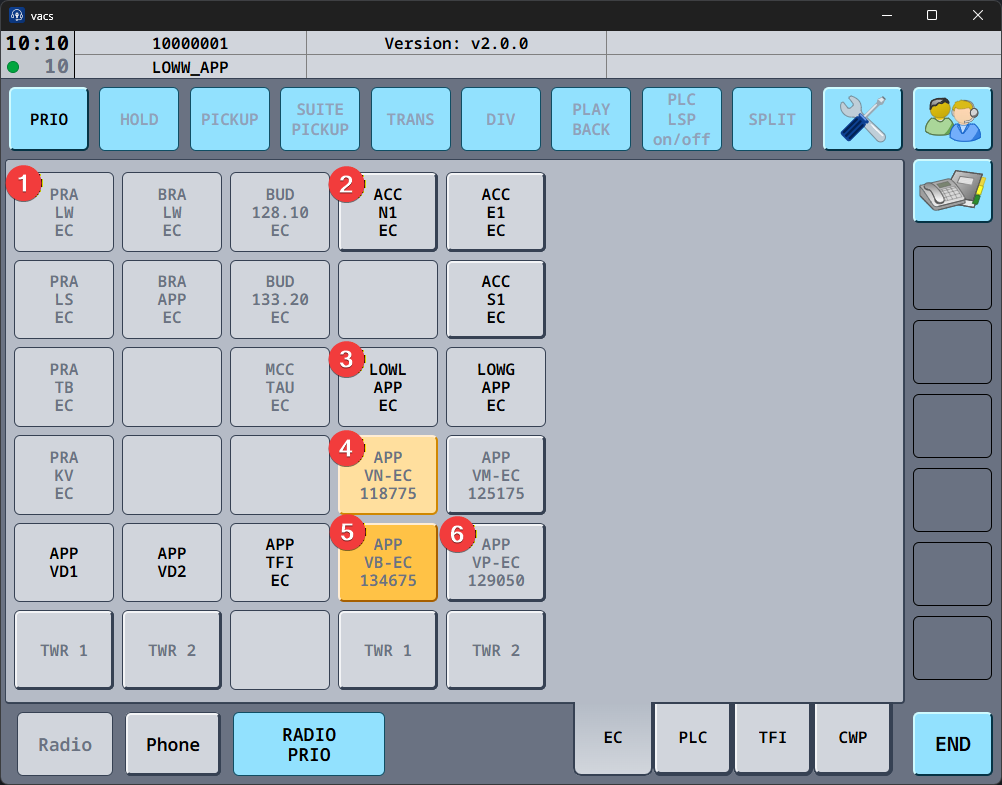
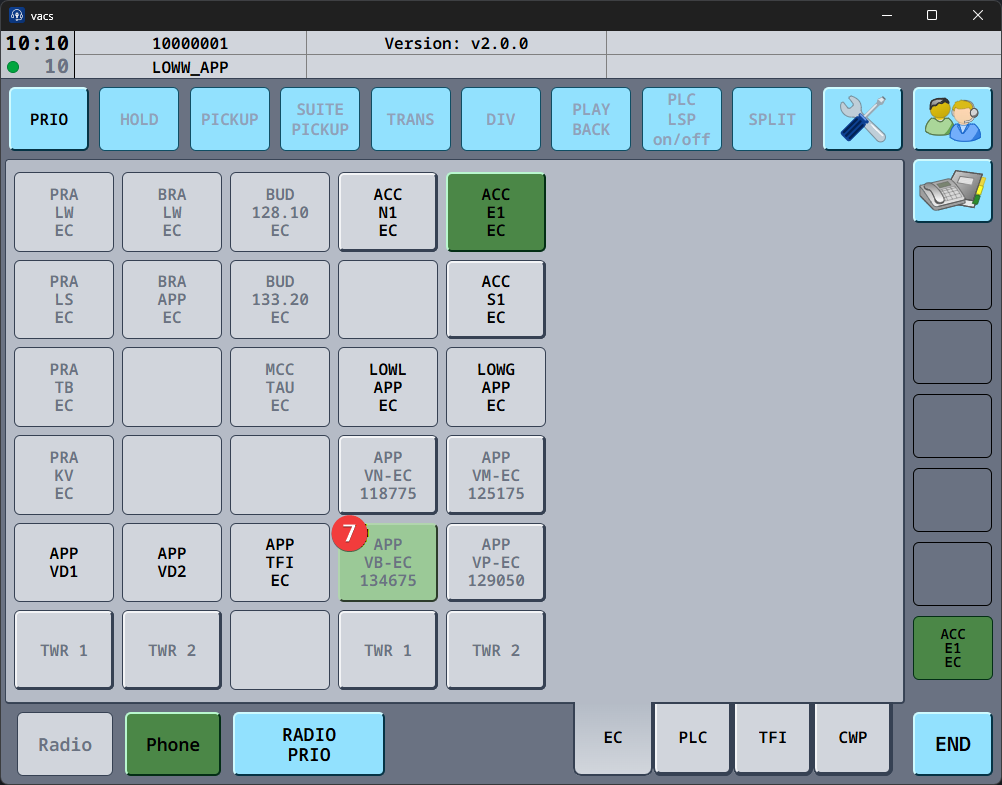
- Button that does not reference a station (disabled button with grey text)
- Station that is online and callable (enabled button with black text)
- Button referencing a station not currently online on vacs (disabled button with black text)
- Temporary call source (enabled button with grey text and peach background color)
- Default call source (enabled button with grey text and honey background color)
- Station currently controlled by your position (enabled button with grey text)
- Target station of incoming or accepted call (enabled button with grey text and sage background color)
Redesigned interface
To properly support station-based calling, the interface has been redesigned from the ground up. Depending on your VATSIM connection, vacs will automatically select the most suitable layout for you, as defined by your FIR's responsible staff.
Two main layouts are currently supported:
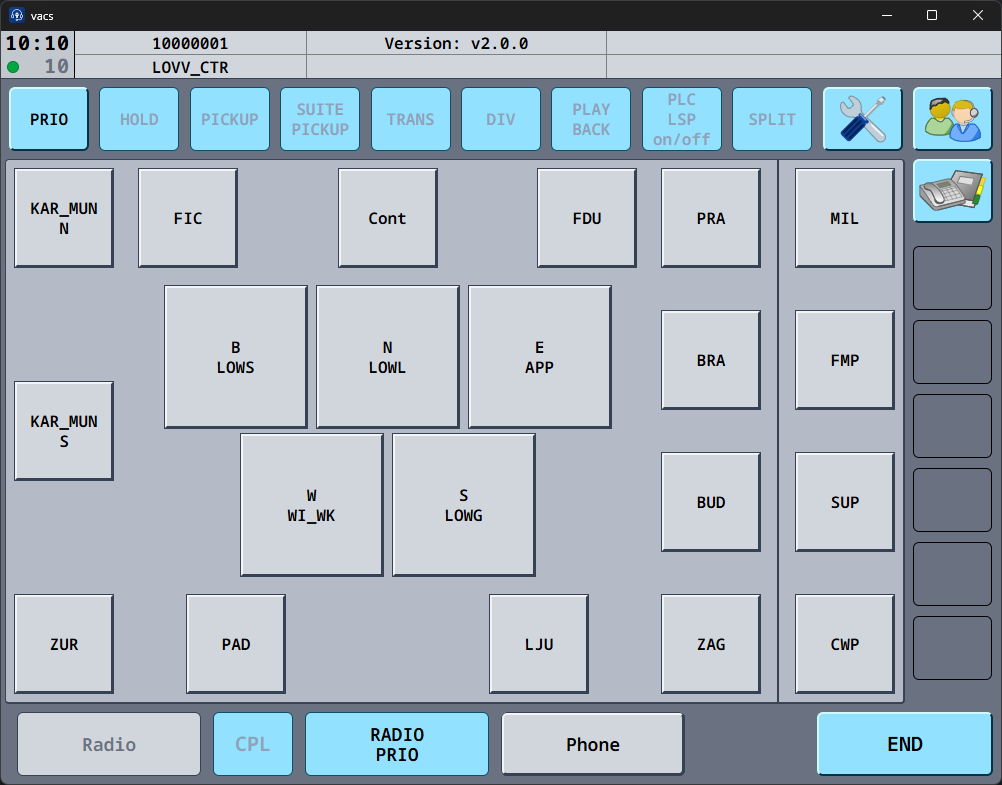
- GEO layout: stations are arranged geographically, giving you a spatial overview of neighbouring units and making it quick and intuitive to find the station you want to call. See the GEO layout documentation for more details.
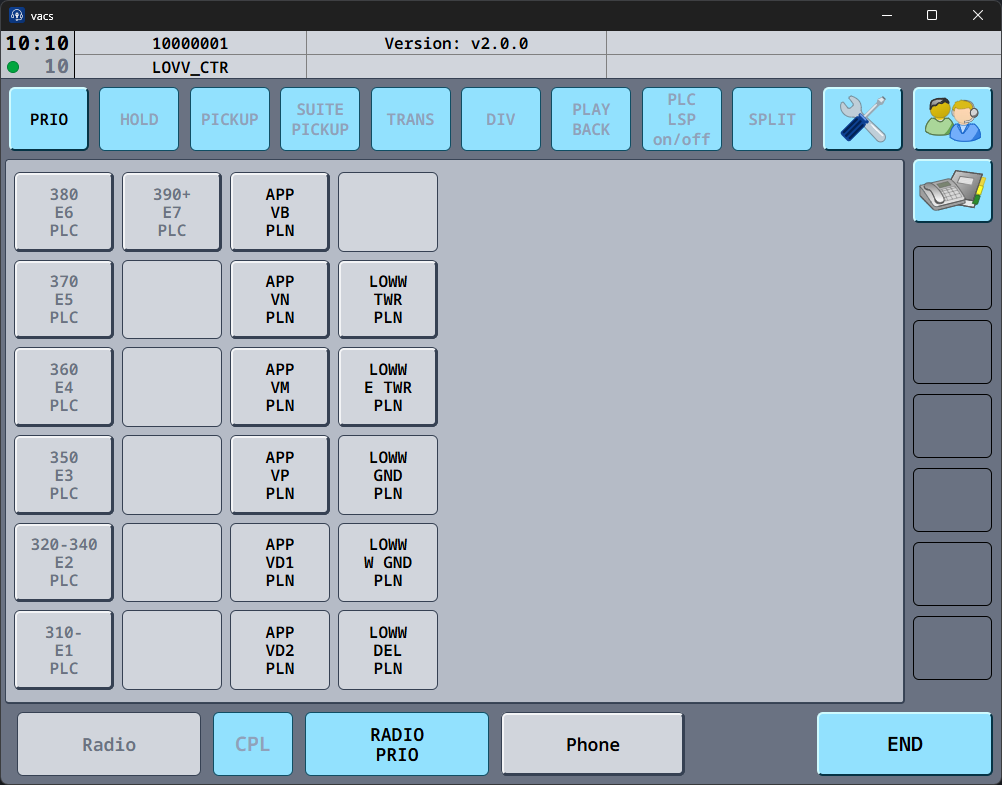
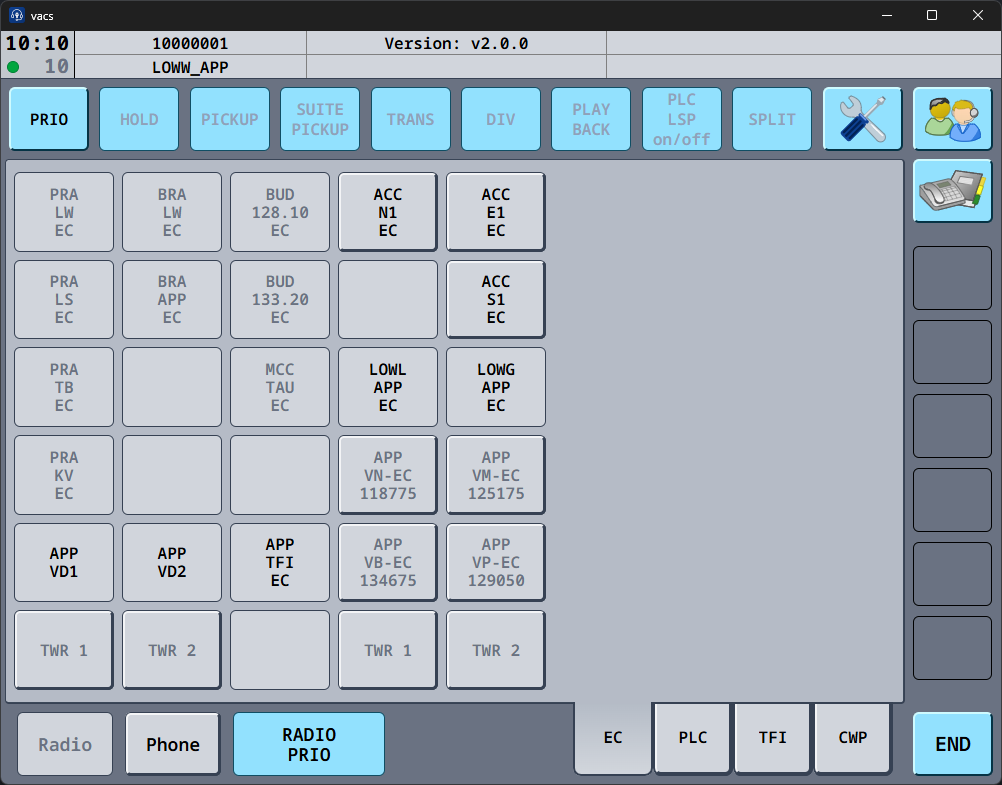
- Tabbed layout: stations are organised into named tabs, allowing them to be grouped logically. See the Tabbed layout documentation for more details.
Call sounds
v2.0.0 adds subtle audio cues when a call connects or ends. No more watching the connection status indicator to know when your call has been answered - you'll hear it right away.
These sounds can be toggled individually on the Call subpage of the Settings page.
Priority calls
You can now mark calls as priority when coordination is urgent. Priority calls appear visually distinct on the receiving end and trigger a more attention-grabbing ringtone to ensure they don't go unnoticed.
See the Making a call section for details on how to initiate a priority call.
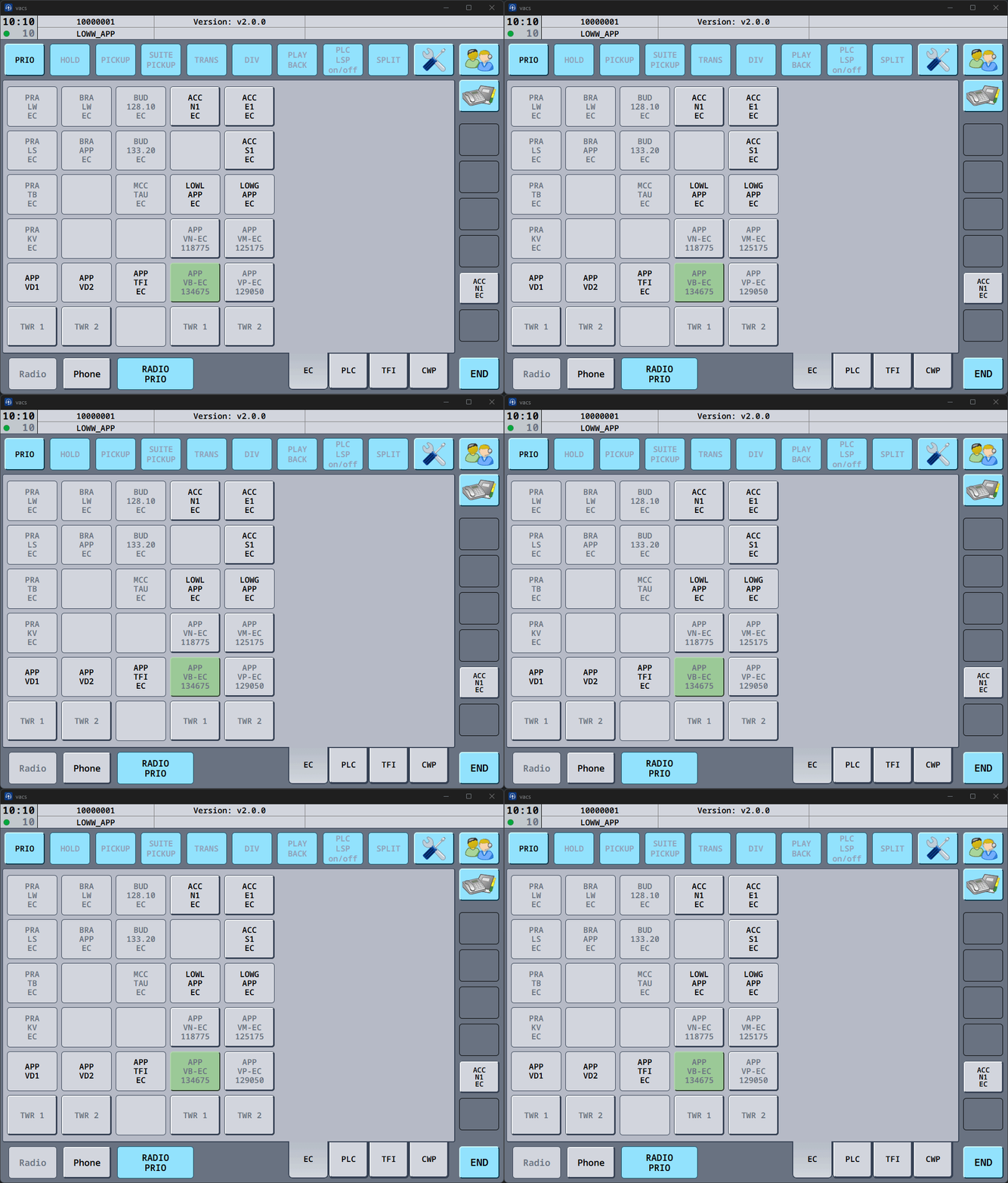
Priority calls can be disabled locally on the Call subpage of the Settings page. When disabled, all incoming priority calls will be treated as normal calls.
Window zoom hotkeys
You can now adjust the zoom level of the vacs window using the familiar Ctrl + and Ctrl - keyboard shortcuts. This is especially useful if you've resized the window and want to ensure the best readability and layout. Ctrl 0 resets the zoom level to its default.
Migrating from v1.x to v2.0.0
v2.0.0 introduces breaking changes that affect how clients communicate with the server. You must update before you can connect - older clients are not compatible with the v2.0.0 server.
Your client will automatically prompt you to update and will refuse to connect until you do. See the Updating guide for instructions.
Your local settings and Configuration will be preserved during the update and will largely continue to work as expected. However, the previous stations.toml and its associated custom stations configuration have been removed in favour of the new interface. Refer to our Clients page for details on the latest UI and how to configure it.
You can find a migration guide for the new client page configuration in our GitHub repository.