Audio
One-way audio (you cannot hear the other controller)
In this situation the call connects normally and the other controller can hear you, but no audio arrives from them. It is almost always caused by something on your network changing the path audio takes, most commonly a VPN.
Call audio in vacs travels directly between the two controllers rather than through our servers. Some VPNs route that traffic in a way that only works in one direction, so your audio reaches the other controller while theirs never reaches you. Products known to cause this include Cloudflare WARP and Tailscale, but any VPN or "internet security" tool that intercepts traffic can have the same effect.
What vacs does automatically
You do not need to do anything for most cases. When a connected call stops receiving audio for a few seconds, vacs re-establishes it through one of our relay servers, which works even when the direct path does not. The call stays up while this happens. You may notice a short gap and the status indicator briefly returning to orange, and then audio resumes.
Automatic relay recovery was introduced in vacs 2.6.0, and both controllers need to be on that version or later for it to work. vacs only attempts the repair towards a controller whose client announced support for it, so a call with someone on an older version is never disrupted by it, but it also cannot be repaired.
If you are on an older version yourself, see Updating vacs.
If the other controller is on an older version, or if the call is already being relayed and audio still is not arriving, vacs cannot fix it on its own and marks the call as degraded instead.
Recognizing a degraded call
A degraded call is one that is still connected but is not delivering audio to you. vacs shows this in two places:
- the status indicator in the top-left corner stays orange instead of turning green
- a muted speaker icon appears in the top-left corner of the call in the call sequence
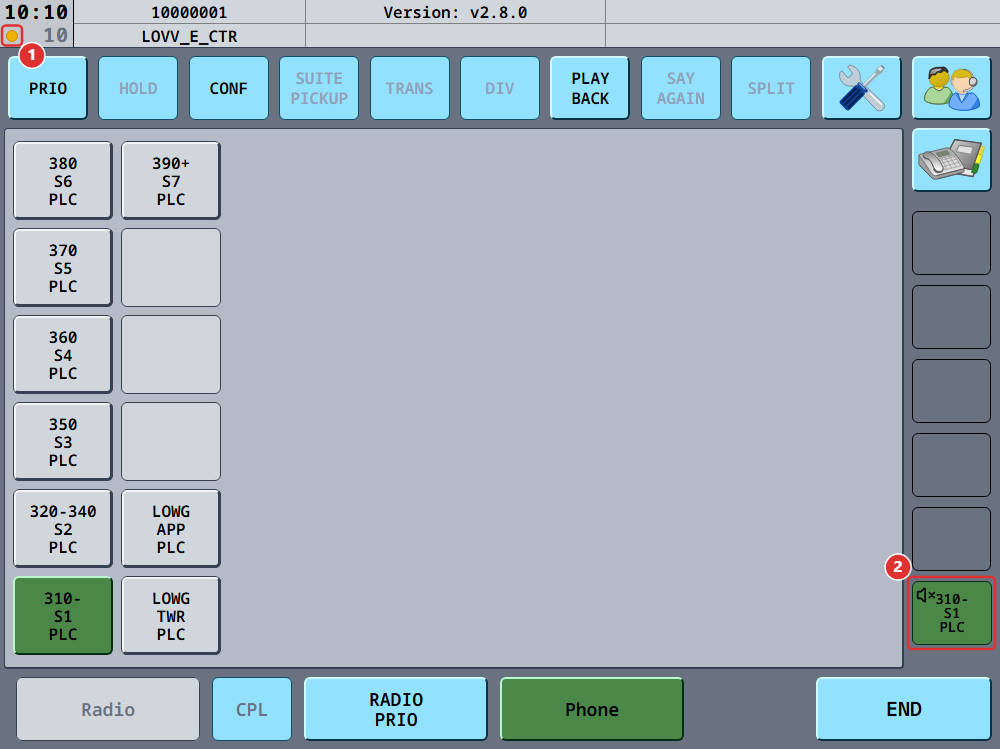
If you see this, tell the other controller on another channel and place the call again. If it keeps happening, work through the steps below.
What to do
- Turn the VPN off. If you do not need it while controlling, disabling it resolves the problem outright and keeps your calls on the faster direct path.
- Exclude vacs from the VPN. Most VPN clients can leave selected applications outside the tunnel, often called split tunneling. This keeps the VPN available for everything else.
- Enable Always relay calls. This makes every call use a relay server from the start rather than waiting for vacs to detect a problem and repair the call. Use this if the first two options are not practical for you, and only then, since relaying adds a small amount of latency.
Enabling Always relay calls only changes how your client connects. If the other controller is the one behind a problematic VPN, they need to change their setting, not you.
About the relay servers
The relay servers are operated by the vacs core maintainers on infrastructure we control, and no third party is involved. Relayed audio passes through them encrypted in transit and is not recorded or stored, exactly like a direct call. Because the audio takes a detour through our server rather than going straight to the other controller, relaying can also reduce how much of your IP address is exposed to the person you are calling.
For the details, see Audio Data and IP Addresses in our Privacy Policy. As with the rest of our infrastructure, we give no guarantee of availability for the relay servers; see our Terms of Use. If you would rather not use them, you can point vacs at your own STUN and TURN servers in the WebRTC config file.