Transmit Modes
The Transmit Config section defines how your microphone behaves during calls, and independently, how vacs interacts with your radio client.
As of vacs 2.5.0, these are two fully independent settings:
- Call Mic Mode controls only how your microphone behaves during a vacs call.
- Radio Integration configures only how vacs controls your radio client (TrackAudio or Audio for VATSIM).
Previously, "Radio Integration" was one of the options in the Call Mic Mode dropdown, meaning you had to give up Voice Activation or Push-to-Mute to use a radio integration. This is no longer the case: Radio Integration is now always available, no matter which Call Mic Mode you use. See How Call Mic Mode and Radio Integration interact below for the combined behavior, some of which is not entirely obvious.
Opening Transmit Config
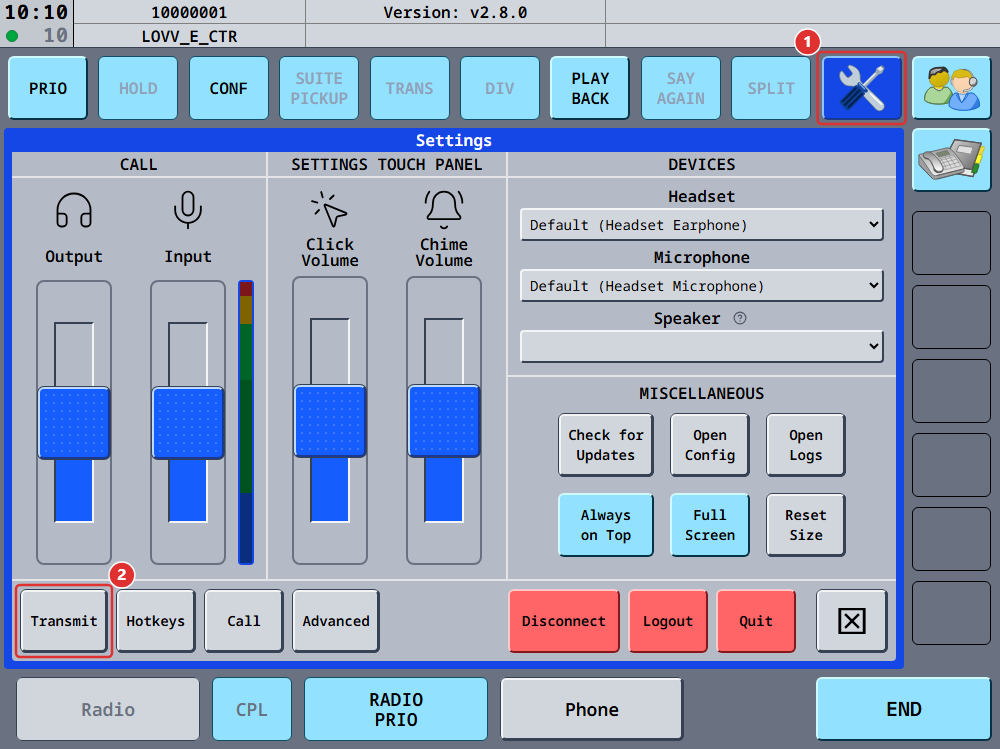
The Transmit Config can be accessed from the settings page, by clicking the Transmit button.
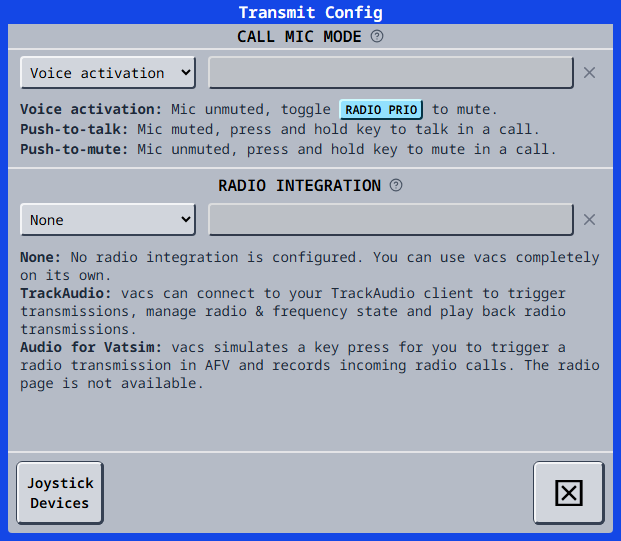
The Transmit Config dialog is split into two independent parts:
- CALL MIC MODE (top) - how your microphone is used during calls.
- RADIO INTEGRATION (bottom) - your radio client integration, always enabled regardless of the Call Mic Mode chosen above.
Call Mic Mode
The CALL MIC MODE dropdown (top part of the dialog) only affects your microphone during a vacs call. It no longer includes a radio-related option - radio behavior is fully configured separately, in Radio Integration.
The dialog itself simply labels this dropdown CALL MIC MODE. Throughout these docs we call it Call Mic Mode to make it clear it only governs your call microphone, as opposed to the Radio Integration below it.
There are three Call Mic Modes:
Voice Activation
Behavior during calls:
- The microphone remains unmuted.
- You can toggle the RADIO PRIO button to mute your microphone.
In this mode, your microphone is permanently active, unless it is manually muted using the RADIO PRIO button. This allows immediate speech transmission without pressing a key.
Voice activation may transmit unintended background noise if your microphone isn't muted manually.
While filtering of background noises is performed using this mode, the corresponding input-gate is very low, accordingly, background noises can be transmitted. Therefore, consider your microphone to be permanently unmuted.
No key-binding is available or required in the CALL MIC MODE part of the dialog for this mode. However, you can assign a key to toggle the RADIO PRIO button, as described in the hotkeys settings.
Push-to-Talk (PTT)
Behavior during calls:
- The microphone is muted by default.
- Press and hold the assigned key to unmute your microphone and to speak.
Audio is transmitted only while the corresponding key is pressed. Assign a key by clicking into the field next to the mode dropdown and pressing your desired key once. Clear a binding with the ✕ button.
From vacs 2.6.0, you can press a button on a connected joystick, HOTAS throttle or handset instead of a key, and vacs binds that button. This works for every binding field in this dialog. See Joystick and gamepad buttons.
Push-to-Mute
Behavior during calls:
- The microphone is unmuted by default.
- Press and hold the assigned key to mute.
This mode allows continuous transmission while providing the ability to temporarily mute when necessary. Assign a key the same way as for Push-to-Talk.
Whenever RADIO PRIO is on, your call microphone is hard-muted and your Call Mic Mode key cannot un-mute it - regardless of whether a radio is configured (this works even with Radio Integration set to None):
- Voice Activation - the mic is immediately muted.
- Push-to-Mute - the mic is muted immediately, and releasing your key no longer un-mutes it.
- Push-to-Talk - holding your key no longer un-mutes the mic, since it's already muted at rest. If the key is already held down when you toggle RADIO PRIO on, the mic stays unmuted until you release it; the lock only takes effect on your next press.
RADIO PRIO also never persists across calls - it is automatically reset to off every time you leave a call.
Radio Integration
The RADIO INTEGRATION section (bottom part of the dialog) is now always enabled, independent of the Call Mic Mode chosen above. This is the main change in 2.5.0: you can use Voice Activation or Push-to-Mute for calls and still integrate with your radio client, which was not possible before.
There are three options:
- None: No radio integration is configured. You can use vacs completely on its own.
- TrackAudio: vacs can connect to your TrackAudio client to trigger transmissions, manage radio & frequency state and play back radio transmissions. If transmissions stop working mid-session, see Troubleshooting on the radio page.
- Audio for VATSIM: vacs simulates a key press for you to trigger a radio transmission in AFV. The radio page is not available. Radio transmission playback is supported, but limited without callsign or frequency info, and only on Windows.
The Audio for VATSIM integration relies on simulating a key press into the standalone AFV client, which is not possible on Wayland-based Linux desktops. There, only None and TrackAudio are available. On X11 desktops, Audio for VATSIM works normally as of vacs 2.6.0; before that it was unavailable on Linux entirely.
The Radio PTT key field
Next to the Radio Integration dropdown is a key-capture field for your Radio PTT - the key that triggers a radio transmission. Its behavior depends on your Call Mic Mode:
| Call Mic Mode | Radio PTT key field | Behavior |
|---|---|---|
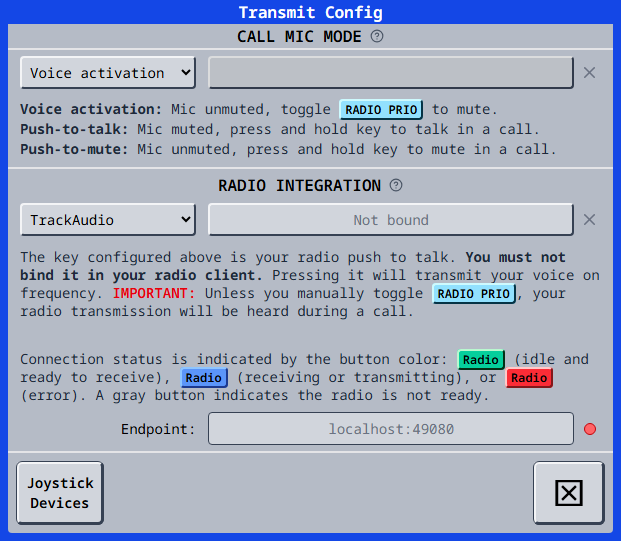
| Voice Activation | Enabled, must be set explicitly | Shows "Not bound" until you assign a key. There is no call key to fall back to, so a key must be captured here for the radio integration to work. |
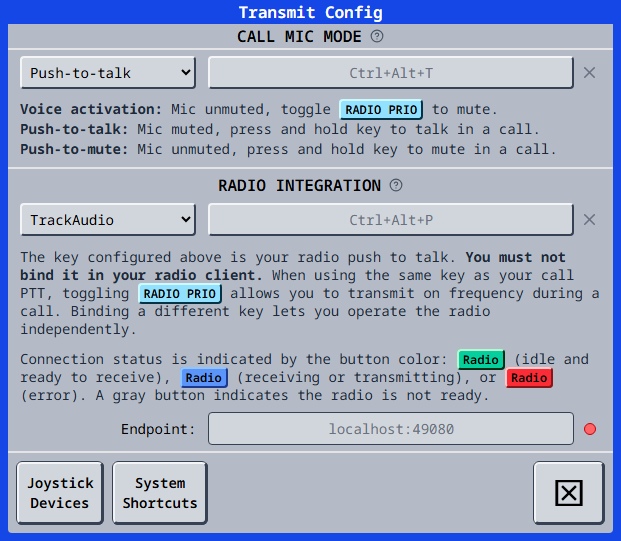
| Push-to-Talk | Enabled, optional | Leave it empty to reuse your call PTT key - the field then shows that key in light grey as a placeholder. Capture a different key to make the radio operate independently of the call key. |
| Push-to-Mute | Disabled, forced to the call key | Always shows (and uses) the same key as your call Push-to-Mute key. A distinct PTM for calls vs. radio is not supported, so the capture field is locked. |
Keyboard keys are assigned in your desktop environment rather than captured in vacs, so "leave it empty" means leaving the Radio Push-to-talk system shortcut unassigned. Everything else in this table works the same way. If you change the shortcut while this dialog is open, reopen it to see the new key. See Platform support on the Hotkeys page.
With Voice Activation, there is no call key to fall back to, so the field starts unbound and shows "Not bound" until you assign one explicitly:
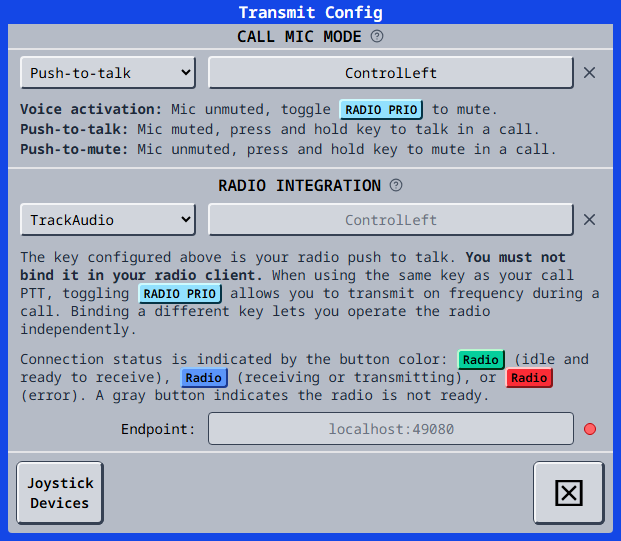
With Push-to-Talk and no radio key captured, the field falls back to your call PTT key, shown as a light grey placeholder:
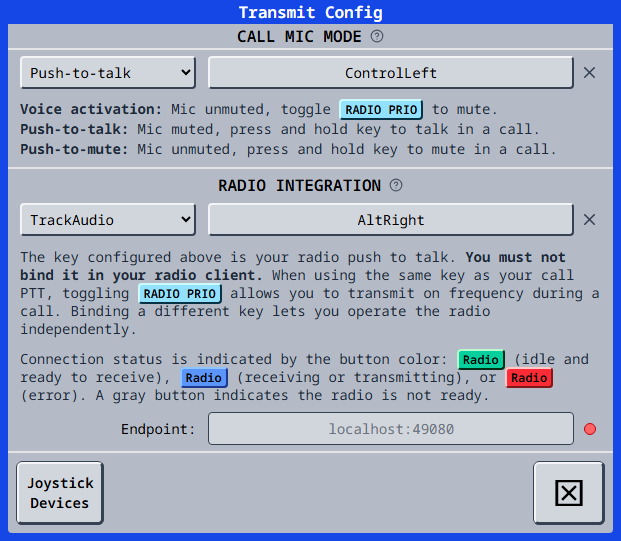
Capturing a distinct key instead makes the radio operate independently of your call PTT:
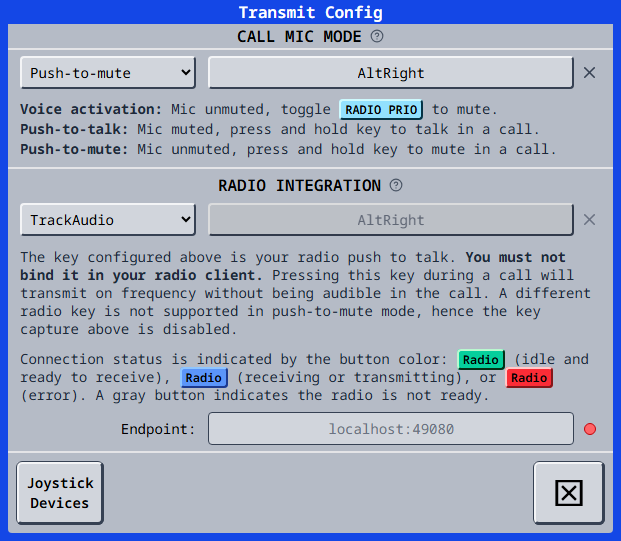
With Push-to-Mute, the field is locked to your call key and cannot be changed:
The Radio PTT key (whether inherited from your call key or explicitly bound) must not also be assigned as Push-to-Talk in your radio/audio client (e.g., TrackAudio). Assigning the same key in both applications can cause transmission conflicts and unintended behavior.
Setting up TrackAudio
Select TrackAudio in the Radio Integration dropdown and configure your Radio PTT key as described above. This key must not also be assigned as push-to-talk inside the TrackAudio client itself - vacs triggers the radio transmission directly, so a push-to-talk key configured in TrackAudio would trigger independently of vacs and conflict with it.
Connection status to TrackAudio is shown by the color of the endpoint indicator dot next to the Endpoint field, and by the color of the Radio status button shown in the explanatory text: green (idle, ready to receive), blue (receiving or transmitting), red (error/not connected), or grey (radio not ready).
Setting up Audio for VATSIM
Select Audio for VATSIM in the Radio Integration dropdown. This option is slightly more involved: assign a pseudo-push-to-talk1 key in the Radio PTT field - choose a key you don't use frequently while controlling, e.g. ScrollLock - and then set that same key as your push-to-talk key inside the Audio for VATSIM standalone client.
Whenever a Radio Integration (TrackAudio or Audio for VATSIM) is selected, vacs must be running during every controlling session. If vacs is not running, no radio transmissions will be triggered, and communication on radio frequencies will not be possible.
How Call Mic Mode and Radio Integration interact
Because the two settings are now independent, the same Radio Integration behaves differently depending on your Call Mic Mode - and in a couple of cases the result is not what you'd intuitively expect. The table below summarizes every combination when a Radio Integration (TrackAudio or Audio for VATSIM) is configured. If Radio Integration is None, only the Call Mic Mode column applies and RADIO PRIO behaves exactly as described in Call Mic Mode.
| Call Mic Mode | Radio key | Outside a call | In a call - RADIO PRIO off | In a call - RADIO PRIO on |
|---|---|---|---|---|
| Voice Activation | explicit (required) | Radio key transmits on the radio. | Call mic stays open (VAD). The radio key independently transmits on the radio at the same time - it has no effect on your call mic. | Call mic is hard-muted. The radio key still transmits on the radio, independently of the mute. |
| Push-to-Talk | shown in light grey (not explicitly bound) | Key transmits on the radio. | Key acts as your call PTT only; it does not touch the radio. | Key acts as your radio PTT only; the call mic stays muted the whole time. This reproduces the pre-2.5.0 "Radio Integration" call mic mode: one key, role switched by RADIO PRIO. |
| Push-to-Talk | different from call key | Radio key transmits on the radio; call key has no effect (no call active). | Both keys work fully independently: call key for the call, radio key for the radio, at the same time if needed. | RADIO PRIO becomes a mute-lock on the call mic only - your call key stops unmuting it. The radio key is unaffected and keeps working normally. |
| Push-to-Mute | forced = call key (locked) | Key transmits on the radio. | Pressing the key mutes your call mic and transmits on the radio at the same time - so the radio transmission is not heard in the call, because your mic is muted for as long as you hold the key. Releasing unmutes the call mic and stops the radio transmission. | The key keeps transmitting on the radio on every press, but the call mic stays muted until you toggle RADIO PRIO off again (releasing the key no longer unmutes it). |
- Voice Activation + radio: your call mic is never muted by pressing the radio key. If your radio audio is audible near your microphone, it can leak into the call while your mic is open and if you transmit on frequency, your voice will be heard too - mute manually with RADIO PRIO if that matters.
- Push-to-Talk with the same key: RADIO PRIO is what decides whether the key talks to the call or to the radio. Forgetting to toggle it is the most common cause of "I pressed PTT but nothing happened on frequency" (or vice versa).
- Push-to-Mute + radio: this is the only mode where a single key press always does two things at once (mute state + radio transmission). Turning RADIO PRIO on effectively locks you muted in the call, even after releasing the key, until you turn it back off.
- RADIO PRIO does not persist across calls. It always resets to off when a call ends, so you'll need to re-enable it (or re-check its state) at the start of each new call if you rely on it.