Key Bindings
The Hotkeys Config Menu allows you to assign keyboard shortcuts for common actions in vacs. These key bindings are optional, as all relevant actions can also be performed using Touch/Mouse Inputs.
As of vacs 2.6.0, every binding field also accepts a joystick or gamepad button. See Joystick and gamepad buttons below.
Opening Hotkeys Config
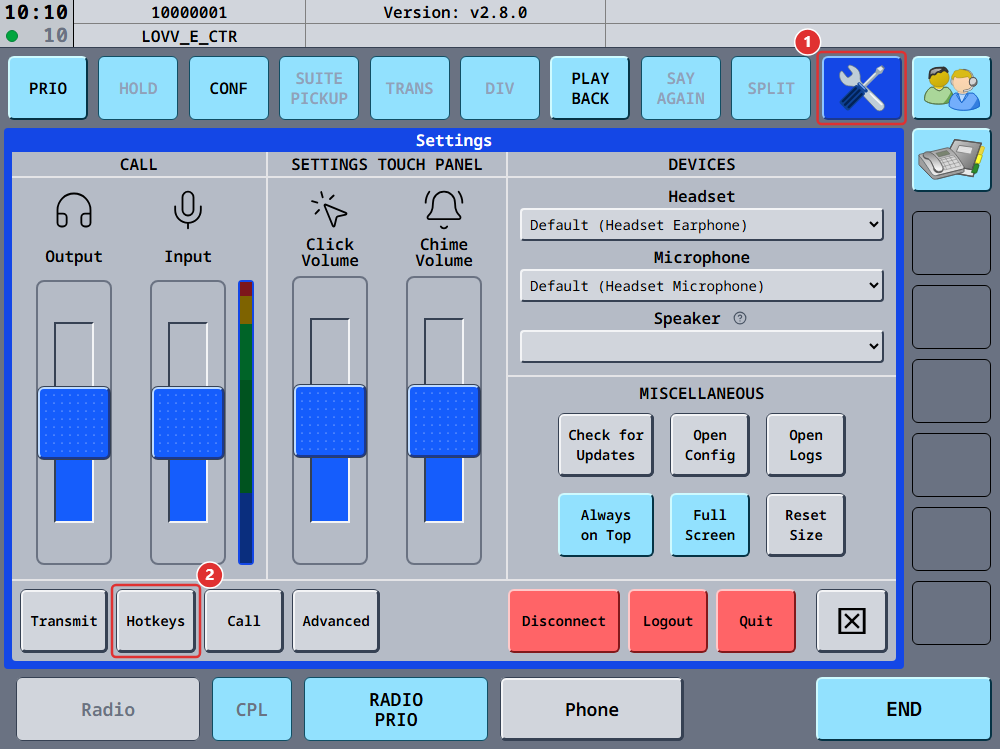
The Hotkeys Config Menu can be accessed from the settings page, by clicking the Hotkeys button.
Assigning a Key Binding
To bind a key to an action:
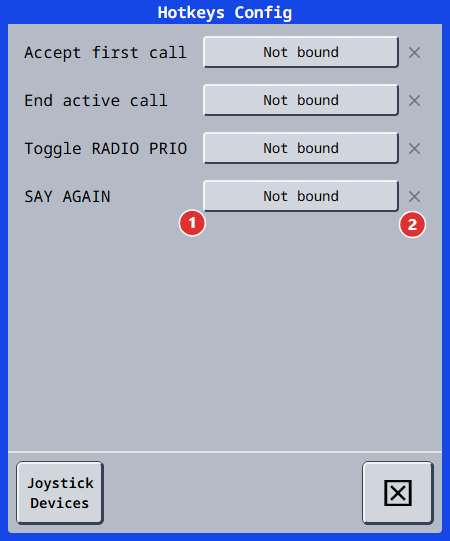
- Simply press the field showing Not bound or the relevant key binding next to the desired action (1).
- Press the key (or key combination) you want to assign, or press a button on a connected joystick.
- The field will update to display the selected binding.
Click the ✕ button on the right side of the row (2) to remove the assigned key binding.
Available Actions
Accept first call
This action accepts the first incoming call in the queue. If there are no incoming calls, pressing this keybind has no effect.
End active call
This action ends the currently active call. If there is no active call, pressing this keybind has no effect.
By assigning the same key to both Accept first call and End active call, you can use a single key to manage your calls: press it once to accept an incoming call, press it again to end the call when you're done coordinating.
If you receive another call while already on one, simply press the key twice to end the current call and accept the new one in one swift motion.
Toggle RADIO PRIO
This action toggles the RADIO PRIO button.
The RADIO PRIO function is designed to operate together with the Radio Integration transmission mode.
Its behavior and operational context are explained in detail in the Interface / Overview page.
SAY AGAIN
Available from vacs 2.8.0.
This action presses the SAY AGAIN button: it replays the most recent recorded radio transmission, and pressing it again while that replay is running stops it. The key does nothing while the button is greyed out or inactive, for example without a radio integration, while Enable radio playback is off, or while the radio is disconnected.
Joystick and gamepad buttons
Available from vacs 2.6.0.
Any binding in vacs can be a joystick or gamepad button instead of a keyboard key. This works for the actions on this page as well as for Push-to-Talk, Push-to-Mute and the Radio PTT key in the Transmit Config.
Typical devices for this are HOTAS throttles and yokes, flight sim button boxes, handsets and gamepads. No driver or configuration is required: connect the device before starting vacs, or plug it in while vacs is running, and its buttons become available immediately.
Binding a button
Binding a button works exactly like binding a key:
- Click the binding field. It shows Press key or button while it waits for your input.
- Press the button on your device. You do not need to have the vacs window focused, and you do not need to keep it focused afterwards - joystick bindings work globally, just like keyboard bindings.
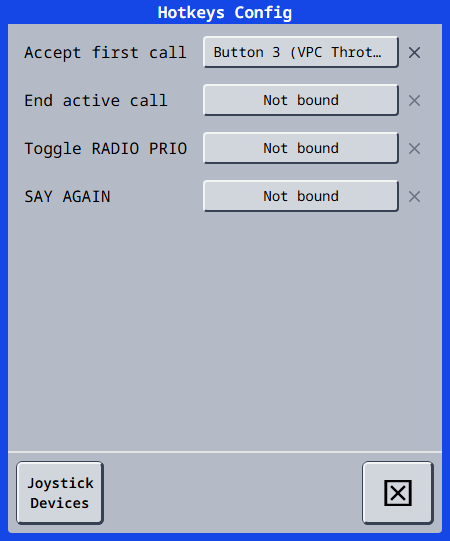
- The field updates to show the button, for example Button 3 (VPC Throttle).
Only buttons can be bound. Axes, hats and triggers that report as an axis (common for gamepad triggers) cannot be used as a binding.
vacs identifies a device by a hardware identifier rather than by the order it was plugged in, so your bindings survive unplugging the device, rebooting, and moving it to a different USB port.
The flip side is that two identical devices (the same model twice) cannot be told apart. A binding made on one of them will also trigger on the other. Different products, for example a yoke and a throttle from the same manufacturer, are always distinguished correctly.
Joystick Devices
Some devices, in particular flight sim throttles and button boxes, have latched switches rather than momentary buttons, or report a resting position as a permanently pressed button. Such a device reports "pressed" without you touching anything, which means it instantly wins any binding capture you start and makes it impossible to bind anything else.
The Joystick Devices button in the header of the Hotkeys Config and Transmit Config dialogs opens a list of your devices where you can tick the ones vacs should ignore while capturing.
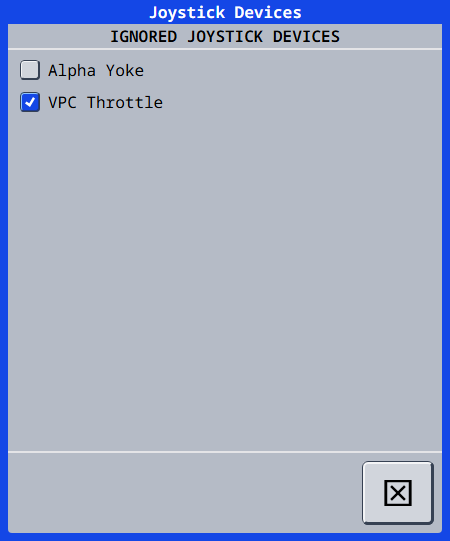
The list contains every currently connected device, plus previously ignored devices that are unplugged right now, so their entry does not silently disappear.
Ignoring a device only excludes it from capture. Bindings you already made on that device keep working normally. This makes it a practical workflow for a chatty device: bind the button you want first, then tick the device so it stops interfering with your remaining bindings.
Platform support
Global bindings, meaning bindings that work while another application is focused, depend on what your operating system permits.
| Platform | Keyboard keys | Joystick buttons |
|---|---|---|
| Windows | Bound in vacs. | Bound in vacs. |
| macOS | Bound in vacs. Requires input monitoring and accessibility permissions, see Requirements. | Bound in vacs. |
| Linux (X11) | Bound in vacs, from vacs 2.6.0. | Bound in vacs. |
| Linux (Wayland) | Managed by your desktop environment, not by vacs. | Bound in vacs. |
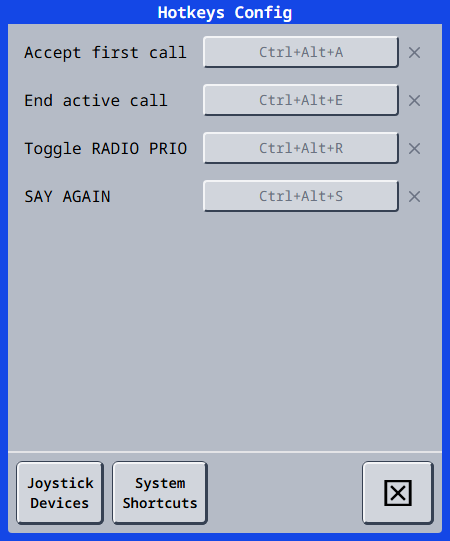
Wayland does not allow an application to observe the keyboard while it is not focused. vacs therefore registers its actions as system shortcuts with your desktop environment, and you assign the actual keys there. The binding field shows the key your desktop has assigned in grey and cannot be edited in vacs; the System Shortcuts button next to Joystick Devices opens your desktop's shortcut settings.
Keys you assign, change or clear in your desktop settings take effect straight away, without restarting vacs.
The first time vacs runs, your desktop asks whether to let it register these shortcuts. A vacs update that adds an action, such as SAY AGAIN in 2.8.0, asks again on its first start, and the new action then appears unassigned in your desktop's shortcut list. If you dismiss that dialog, none of them are registered and vacs hotkeys stay inactive, even after you assign keys in your desktop settings. Restart vacs to get the request again.
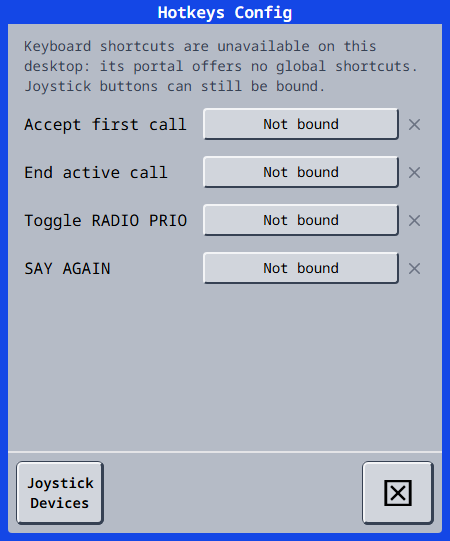
Some desktops do not offer the global shortcuts portal at all, for example GNOME before version 47 and older Plasma releases. vacs still starts there and says so on the Hotkeys and Transmit pages, but keyboard shortcuts stay unavailable: the actions cannot be bound to keys, while joystick buttons and voice activation work as usual.
Joystick buttons are not affected by this restriction and are captured directly in vacs. Binding a joystick button to an action replaces the desktop shortcut for that action, and removing the button restores it.
This is what the Hotkeys Config looks like on a Wayland session: the keys come from the desktop environment and are shown in grey, and the System Shortcuts button sits next to Joystick Devices.
On a Wayland desktop without a global shortcuts portal, the page says so instead, and the fields only accept joystick buttons: