Audio Settings
The Audio Settings allows you to configure input and output devices as well as adjust important volume levels used during operation.
It can be accessed directly from the main Settings page of the vacs application.
The available options are divided into two sections:
- The Volume Controls,
- The Audio Device Configuration.
Audio Device Configuration
Under the Devices section of the settings page, you can configure:
- Headset / Output Device
- Microphone / Input Device
- Speaker / Notification Device (optional)
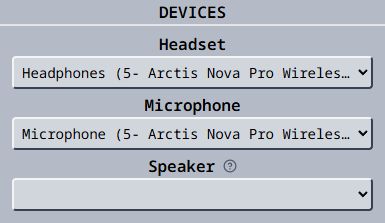
Select the correct devices, before continuing with the setup of vacs.
The optional Speaker device allows you to route ringtone/chime sounds and UI click sounds to a separate audio output. This is useful if you want incoming call notifications to play through your desktop speakers while call audio stays in your headset.
If no speaker device is selected, all sounds will play through the headset output.
Volume Controls
vacs provides several adjustable volume sliders visible on the settings page:
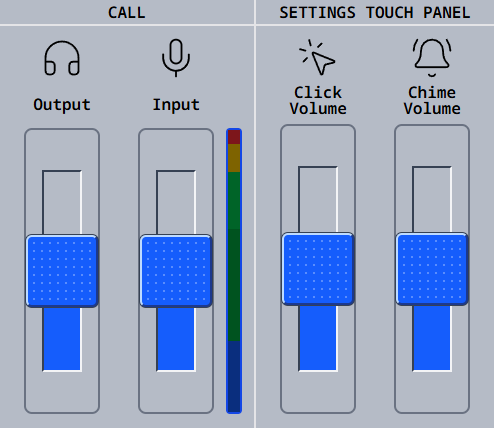
Call Audio
Output Volume
The Output slider controls the playback volume of incoming vacs calls.
By clicking onto/releasing the square button, a test-sound is played, which can help you in setting the output volume correctly.
Input Volume
The Input slider controls your microphone transmission level.
A vertical level meter next to the slider displays your live input level:
- Green → Normal operating range
- Yellow → High level
- Red → Clipping (too loud)
Ensure your microphone does not consistently reach the red zone, as this may cause audio distortion.
The input level meter can be toggled on and off by clicking it. By default, it is active (indicated by a blue border) when you open the settings page and should automatically display your audio input.
If you do not see the level meter move as you speak, make sure you have the correct microphone selected and try toggling the meter off and on again to reset it.
Touch Panel Audio
Click Volume
Controls the volume of (button) click sounds when interacting with the user interface.
Chime Volume
Adjusts the volume of the chime played when receiving an incoming call. This setting controls both regular and Priority call chimes, including custom ring sounds you have configured.
Press the volume slider to play the call sound and verify the selected volume level. A custom ring sound plays in full.