Receiving a call
This article explains how incoming calls are handled in vacs. We will use the Tabbed Layout to show different things related to receiving calls directly in vacs.
When another controller initiates a call to a sector you are covering, vacs will notify you visually and audibly.
Incoming Call Indication
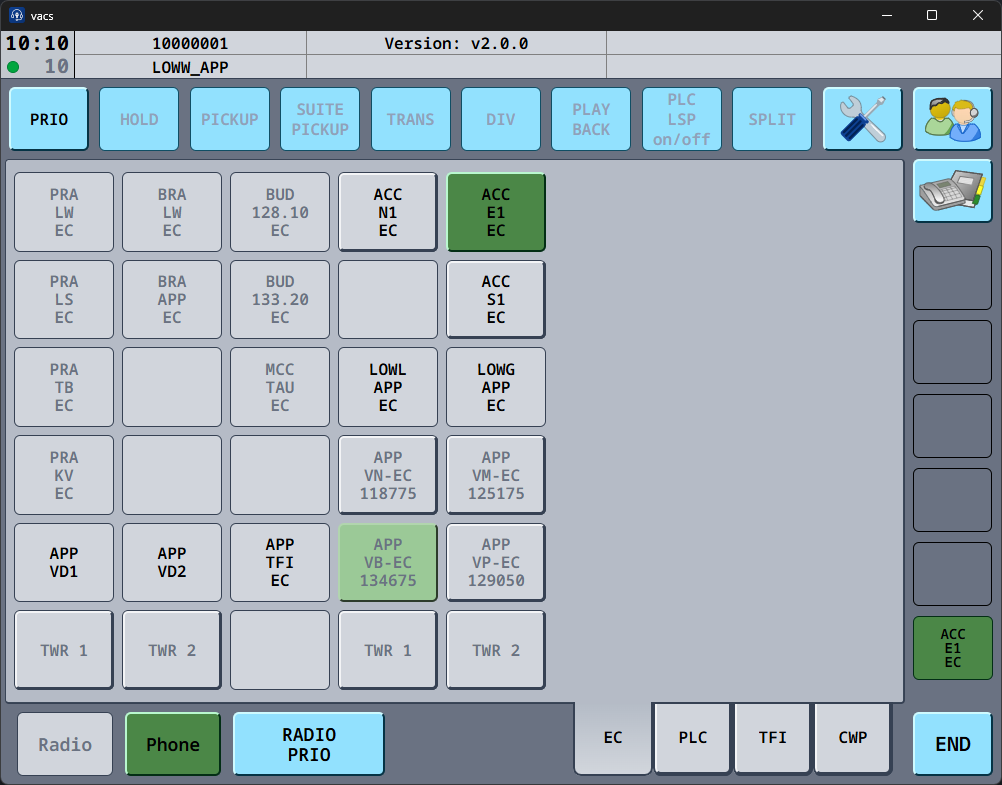
When another controller calls you, the relevant sector button (of the caller (=call source)) will start indicating the incoming call.
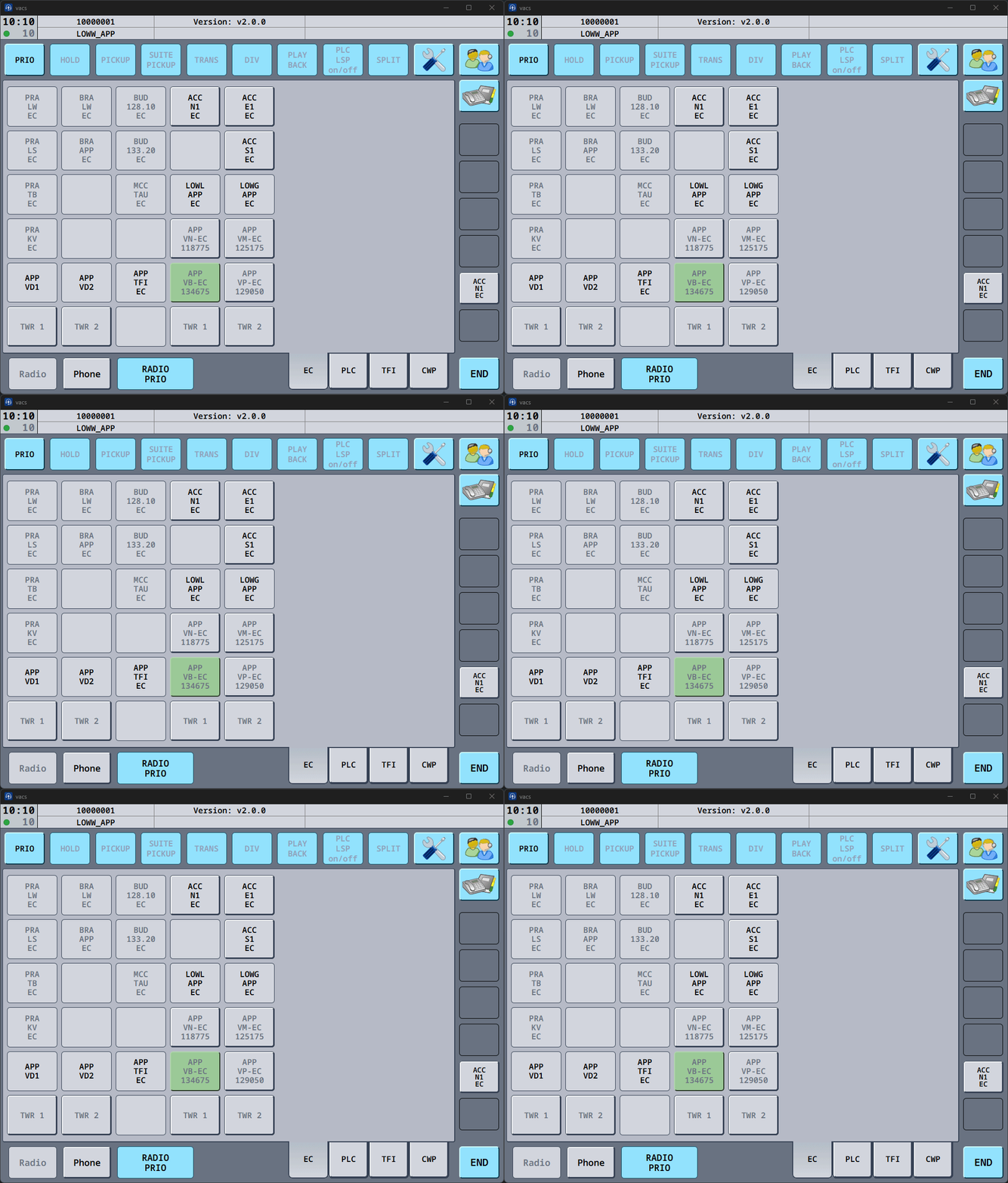
In the interface, you can see:
- Who is calling: Dark Green, flashing, button. Here:
ACC N1 EC. (Only visible as call source was selected by the caller.) - Which sector is being called: Light Green, static, button. Here:
APP VB-EC.
Target Sector not clearly defined
In some situations, vacs cannot determine a unique sector target for the call.
This happens, for example, when a sector is called not using a correctly defined direct access key, but via the Phone Directory or CWP Page (if set up).
In this case, the incoming call is indicated without highlighting a specific sector.
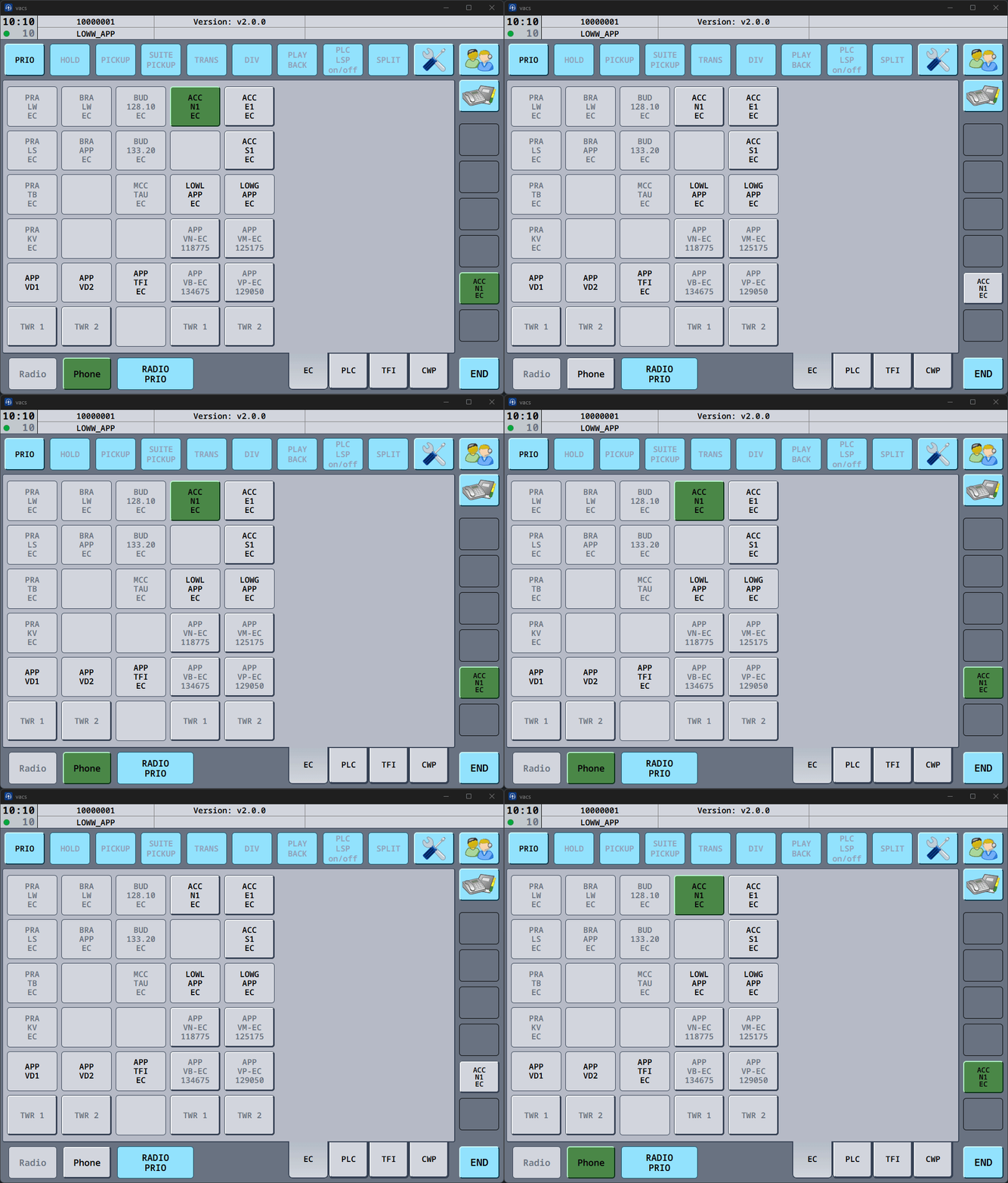
You can still accept the call normally.
Multiple Incoming Calls
If several controllers attempt to contact you at the same time, vacs will display multiple incoming call indicators.
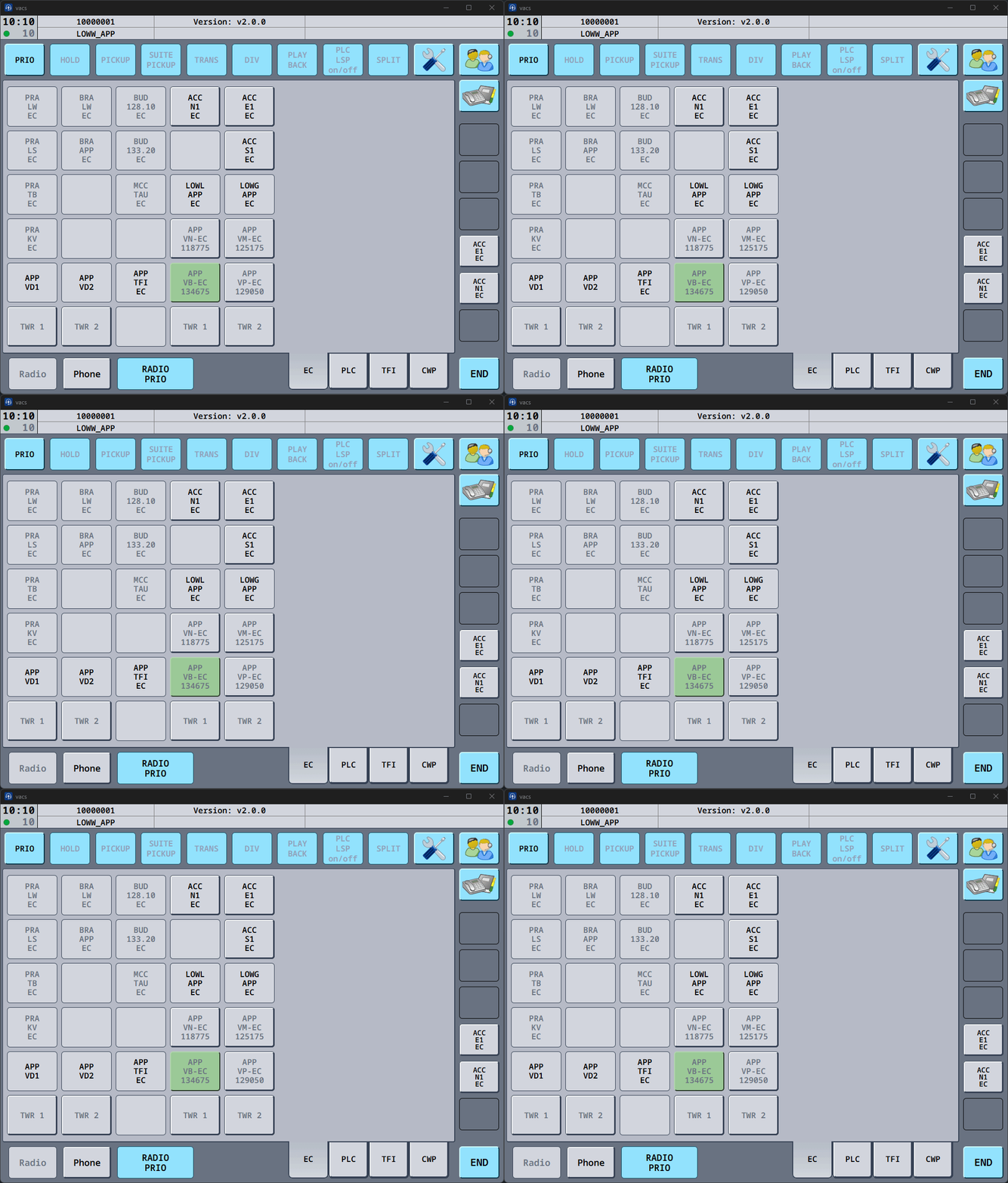
You can decide which call to accept first.
Priority Calls
Incoming PRIO calls indicate urgent coordination.
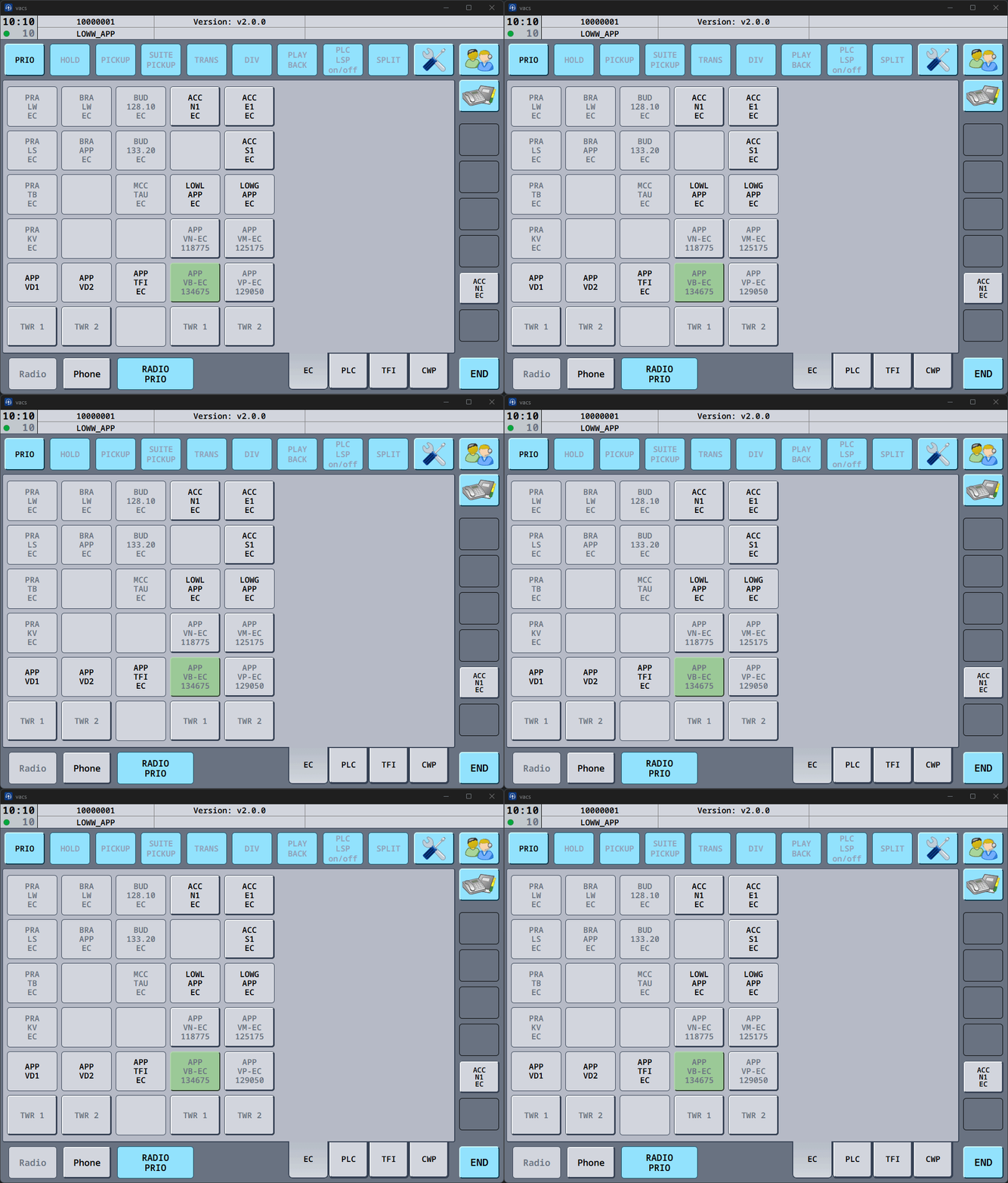
Priority calls are marked clearly (visual & audible) and should generally be handled before normal calls, as they indicate time-critical coordination.
Accepting a Call
To accept an incoming call, press one of the flashing green call indicators.
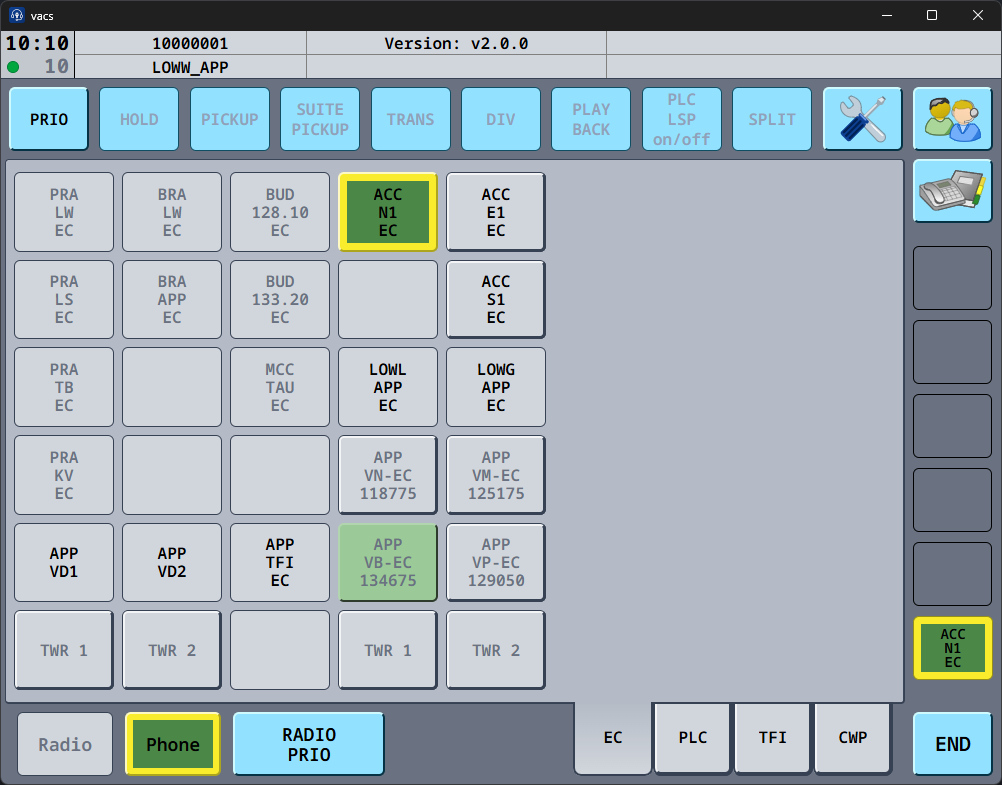
Once connected (call status indicator on the top left turns from orange to green and/or audible signal), the active call will be indicated in the interface.
If the call was initiated as a PRIO call, the active call will also indicate the priority status (yellow border).
Being invited into a Conference
You can also be called into a coordination that already has more than two controllers in it, or one that grows into that while you are on it.
An incoming invitation into a call that already has two or more parties in it is shown differently:
- The answer key reads CONF instead of naming the caller. A conference is not one sector, so there is no single name to show.
- Every sector in the call is highlighted, not just the caller. If a controller in the call is covering a sector on one of your Direct Access Pages, that key and the page it sits on light up.
- This also happens when the caller has not selected a call source, in which case the caller itself cannot be highlighted but the other participants still are.
Accept it exactly like any other call, by pressing the flashing answer key. Once you are in, you hear and are heard by everybody in the call.
While the call runs, joining and leaving controllers are announced by their own short sounds, which can be turned off in the Call Settings.
For what you can and cannot do inside a conference, and who is allowed to add or remove participants, see Conference calls.
Speaking during a Call
How audio transmission works during a call depends on your configured Transmit Mode.
Possible behaviors include:
- Separate push-to-talk/mute keys for radio and phone.
- Shared transmission key (Radio Integration) for both communication channels.
- Voice Activation.
These settings are explained in Transmit Mode.
Depending on your selected Transmit Mode, the RADIO PRIO button, has a different functionality.
Ending a Call
To terminate the call:
- Press the END button in the bottom control bar.
This will immediately terminate the call and return the interface to its normal state.
In a conference call, END only takes you out of the call and the other controllers keep talking. If you are the conference leader, it ends the call for everyone.
Ignoring a Call
If you are unable to accept a call at the moment, you may simply not answer the incoming call.
The caller will receive a notification that the remote target did not answer, and the call will terminate automatically.