Making a call
This article explains how to place and manage calls in vacs. We will use the Tabbed Layout to show different things related to making calls directly in vacs.
In vacs, calls are made by selecting the sector you want to coordinate with. The system automatically routes the call to the controller currently responsible for that sector, taking into account sector coverage and top-down operations.
Placing a Call
To initiate a coordination call:
- Identify the sector you want to coordinate with. Take a look at the different Direct-Access Pages (Tabs) available in the bottom bar, to find your call recipient.
- Click the corresponding Direct Access Key to initiate a call.
If the button is active (clickable) and the text appears in black color, this sector is online on VATSIM & vacs, and is ready to recieve your call. vacs will initiate a call to the controller currently covering this sector.
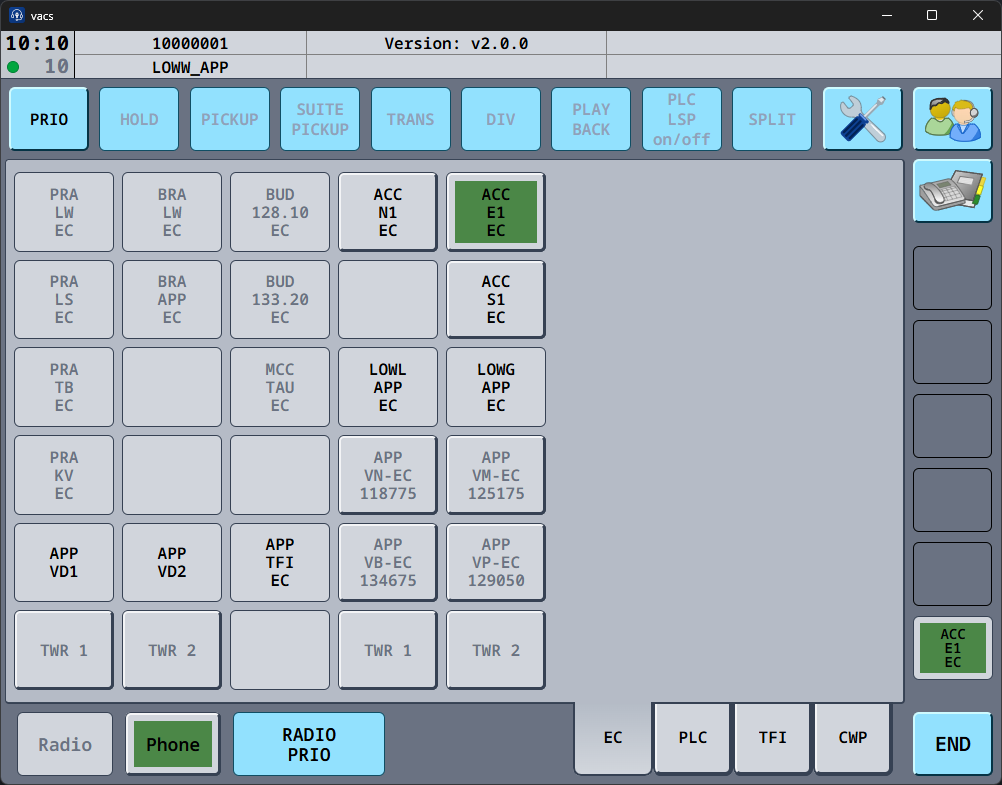
In the example above, ACC E1 EC is being called from the call source APP VB-EC (dark orange), which vacs selected automatically for the position (see Selecting a Call Source).
During the call setup phase (until the recipient accepts the call):
- The selected Direct Access Key indicates the outgoing call.
- The Phone button indicates that a phone call is active.
- The recieving controller will be made aware of the incoming call (visual & (if activated) audible).
Once the receiving controller accepts the call, the connection will be established automatically.
Call Establishment
After the recieving controller accepts the call, vacs establishes audio connection. While it does, the connection indicator in the top-left corner shows orange.
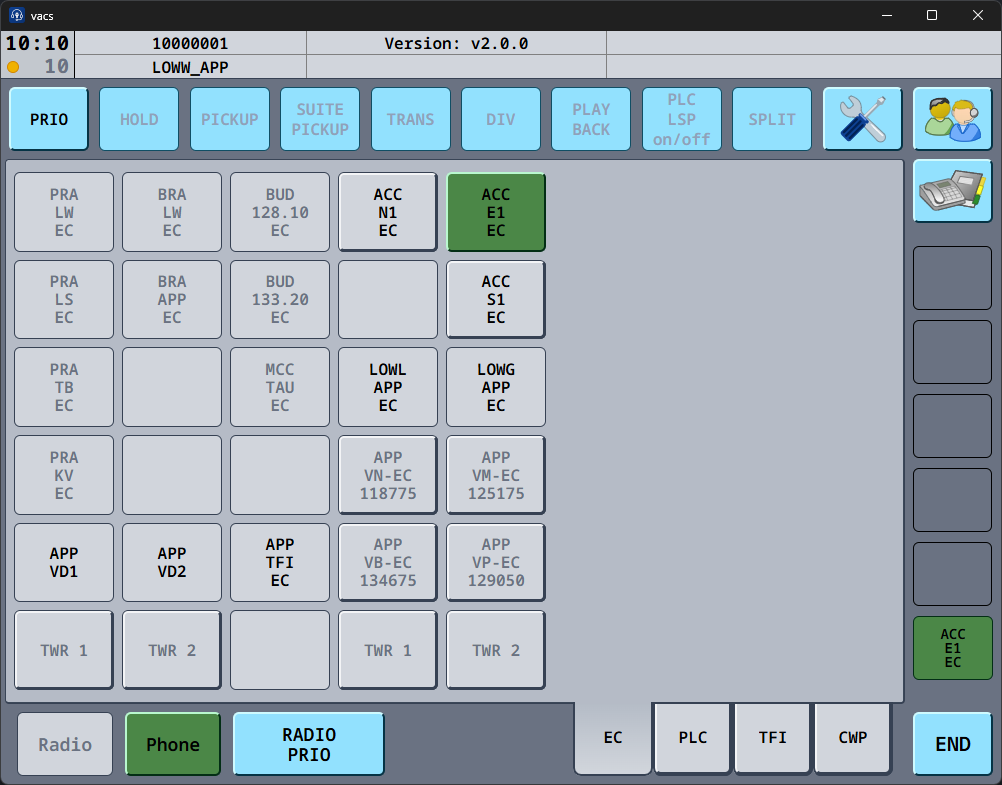
A successful connection is indicated by:
- the green connection indicator in the top status bar
- optionally an audible sound, if enabled
The image above shows such an established call with ACC E1 EC: the connection indicator is green, and the Direct Access Key, the call display on the right and the Phone button are solid green.
See Top Status Bar for more information about the status indicator.
There may be a short delay (approximately 150-200 ms) before audio transmission becomes active while the call connection is established.
Selecting a Call Source
If you are covering multiple sectors simultaneously (as is often the case), vacs allows you to choose which sector appears as the caller.
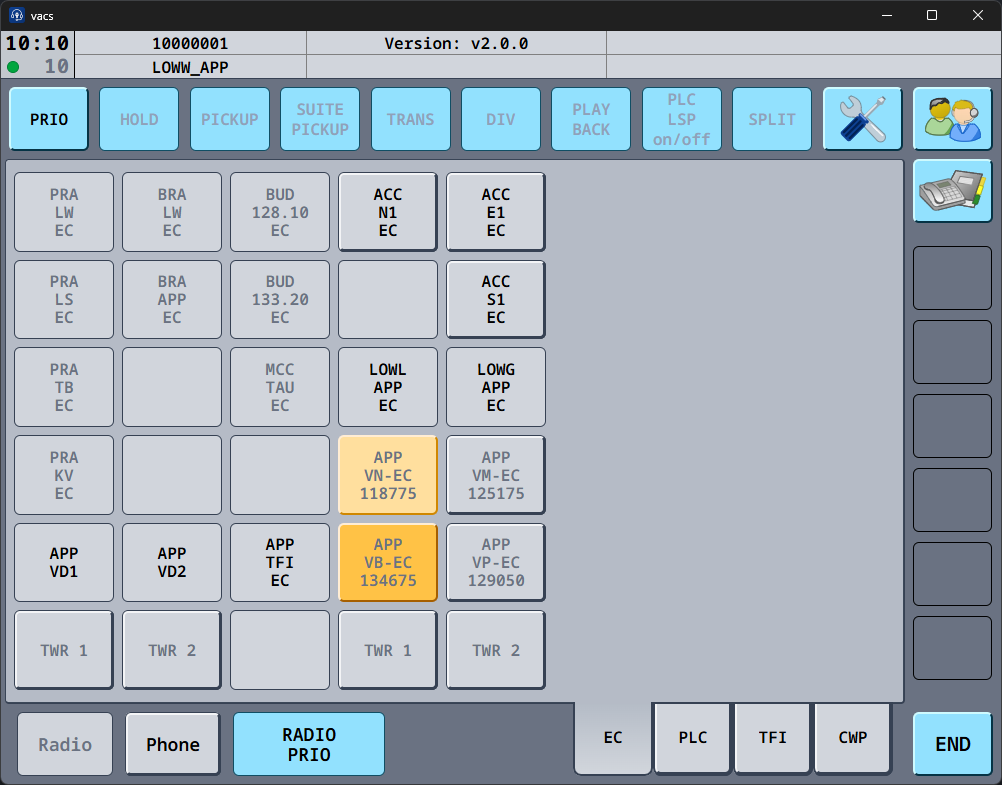
The call source can be selected on the relevant Direct Access Page. The sectors, which you are covering, from the position you are logged in with, are indicated by active buttons in grey color. By clicking one of these, you define your call source:
- A single click sets this sector as the Temporary Call Source (light orange). It is then used as the call source for the next call only.
- A double click sets this sector as the Fixed Call Source (dark orange), as long as no fixed call source is set. If vacs already picked one automatically, click it once to clear it first. The fixed call source is then used as the call source for all calls in your session, except, if you defined a relevant Temporary Call Source.
The call source determines which sector name is shown to the recieving controller of your call. It is particularly useful, as the recipient of your call can directly identify, which precisely sector is calling.
It is recommended to select a fixed call source at the beginning of your session.
If necessary, you can temporarily change the call source for individual calls by selecting a different sector as temporary call source before initiating the call.
If no call source is explicitly selected, vacs will use a default identifier for your station when placing calls. This identifier will be visible to the receiving controller instead of a specific sector.
vacs can automatically set your default call source based on the position you are logged in with. This means you will typically not need to manually select a call source at the start of your session if your FIR's dataset is configured accordingly. If needed, this can be disabled in the Call Settings.
:::
PRIO Calls
A PRIO call indicates an urgent call.
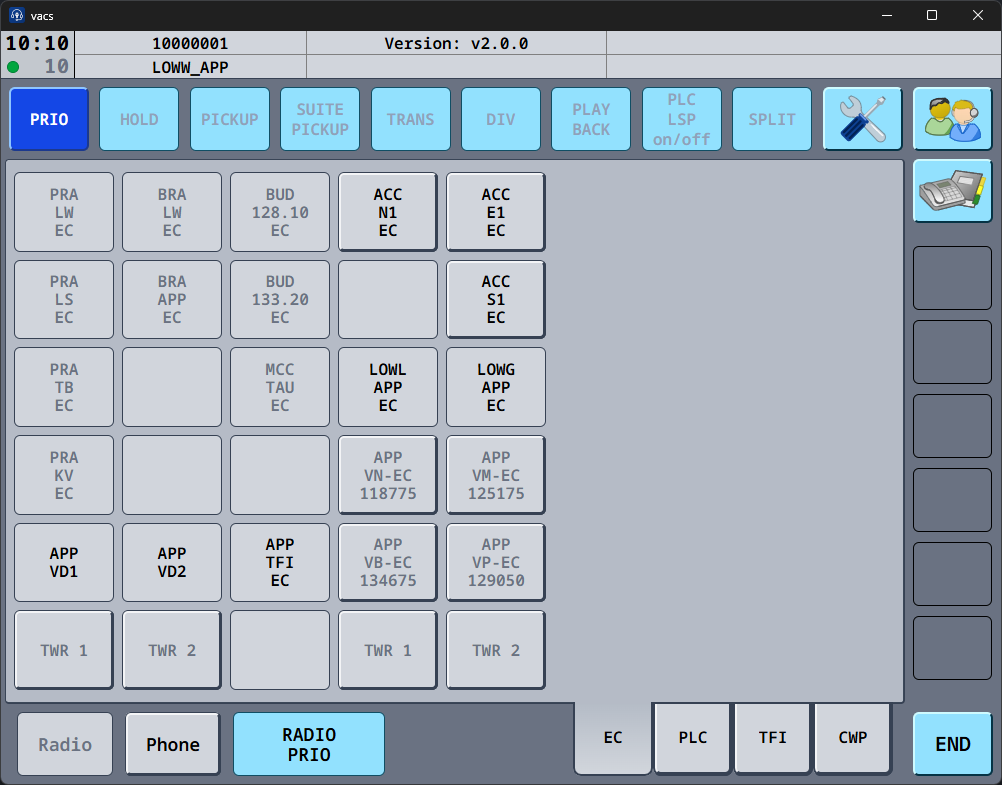
To place a PRIO call:
- Activate the PRIO button.
- Click the sector you want to call.
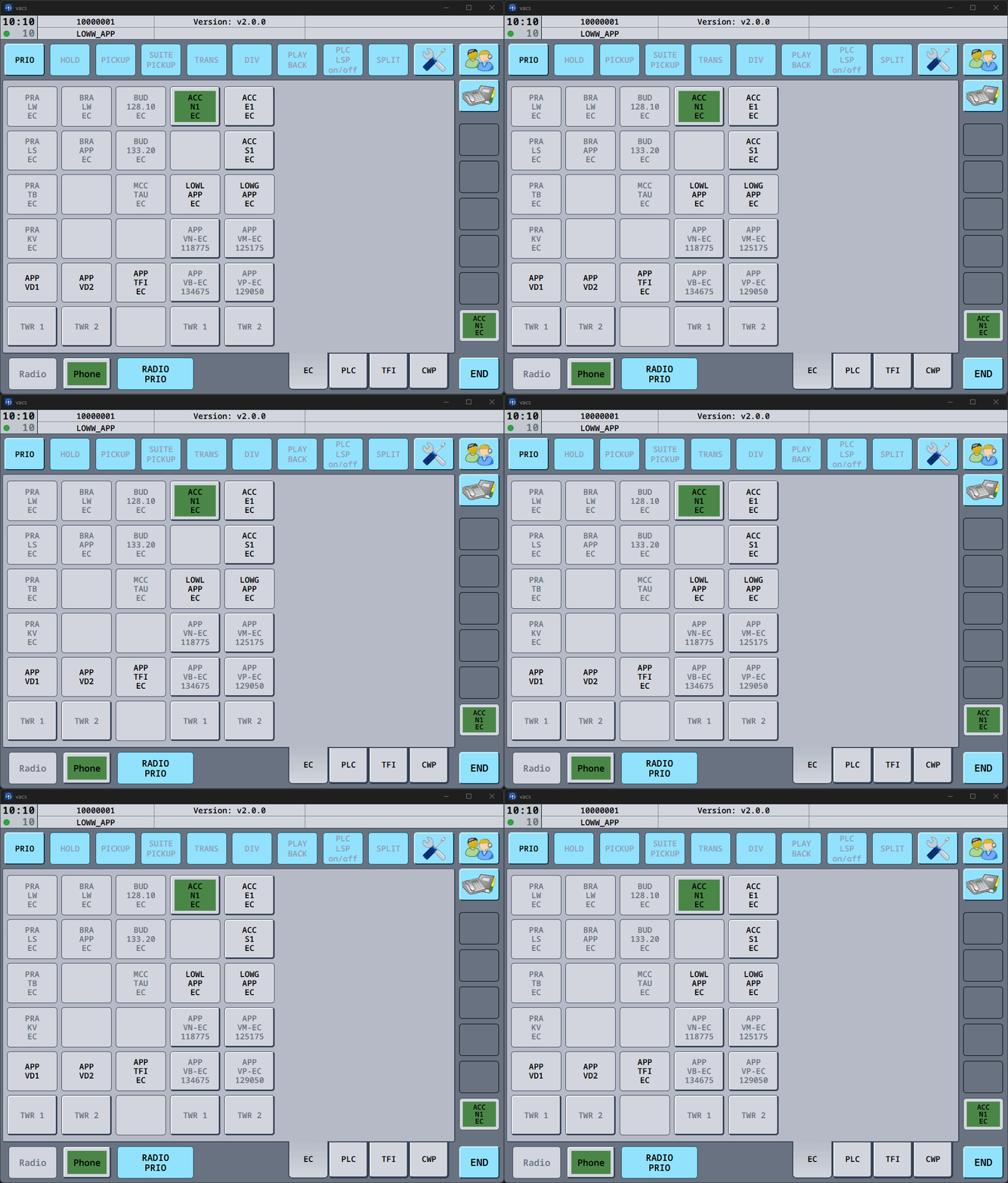
The recieving controller can detect a PRIO call using visual and audible aids. A PRIO call is highlighted by a yellow border around the caller indication. Also, PRIO calls are indicated by a special sound for the recipient.
PRIO calls can be disabled in the settings.
It is suggested to only use PRIO calls when coordinate is time-critical or operationally urgent.
Transmission during a Call
How audio transmissions (frequency & coordination via vacs) behaves during a coordination call depends on your configured Transmit Mode.
Typical options include:
- Separate push-to-talk/mute keys for radio and phone.
- Shared transmission key (Radio Integration) for both communication channels.
- Voice Activation.
These settings and their configuration are explained in Audio Settings.
Your chosen configuration determines how you speak during coordination calls.
RADIO PRIO
During calls, the RADIO PRIO button is also relevant, if you decide to use the Radio Integration Transmit Mode. It allows you to prioritize radio transmissions over coordination calls.
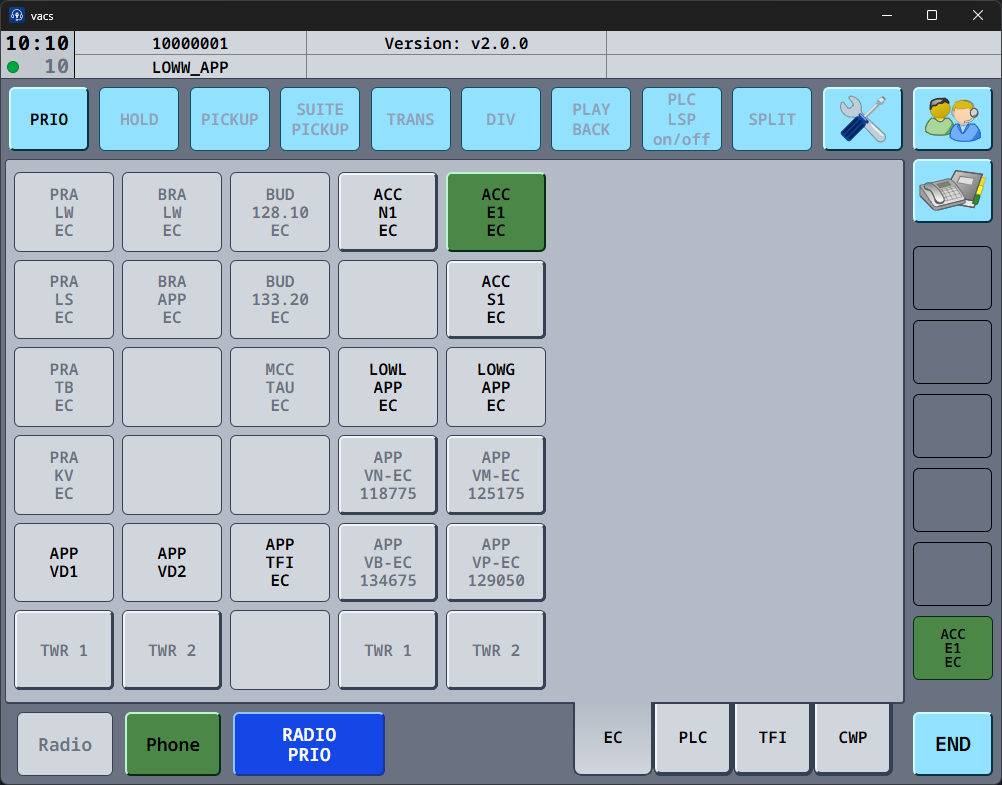
When RADIO PRIO is enabled during an active call:
- Radio transmissions always take priority.
- Phone tramission are temporarily suppressed.
Otherwise, while a call is active, your push-to-talk transmits into the call rather than on frequency.
Call Errors
In some situations, a call cannot be established.
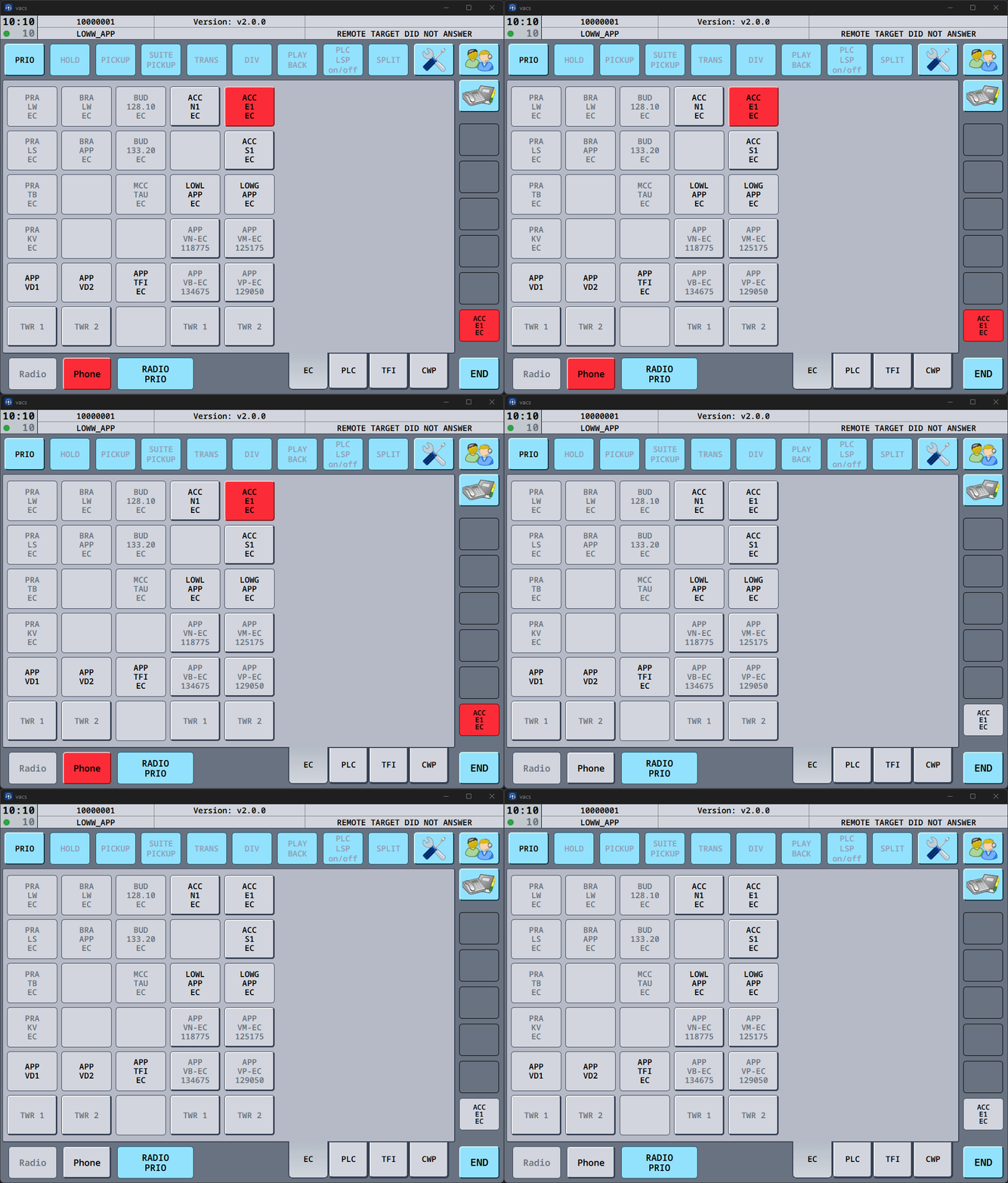
Common reasons include:
- The remote controller did not answer.
- The call was rejected.
- A technical issue occured during call establishment.
In the first example above, ACC N1 EC did not answer: its key, the call display and the Phone button blink red, and the reason (REMOTE TARGET DID NOT ANSWER) is shown at the right end of the top status bar. In the example below, ACC E1 EC rejected the call, so its key, the call display and the Phone button stay green and blink their grey border instead.
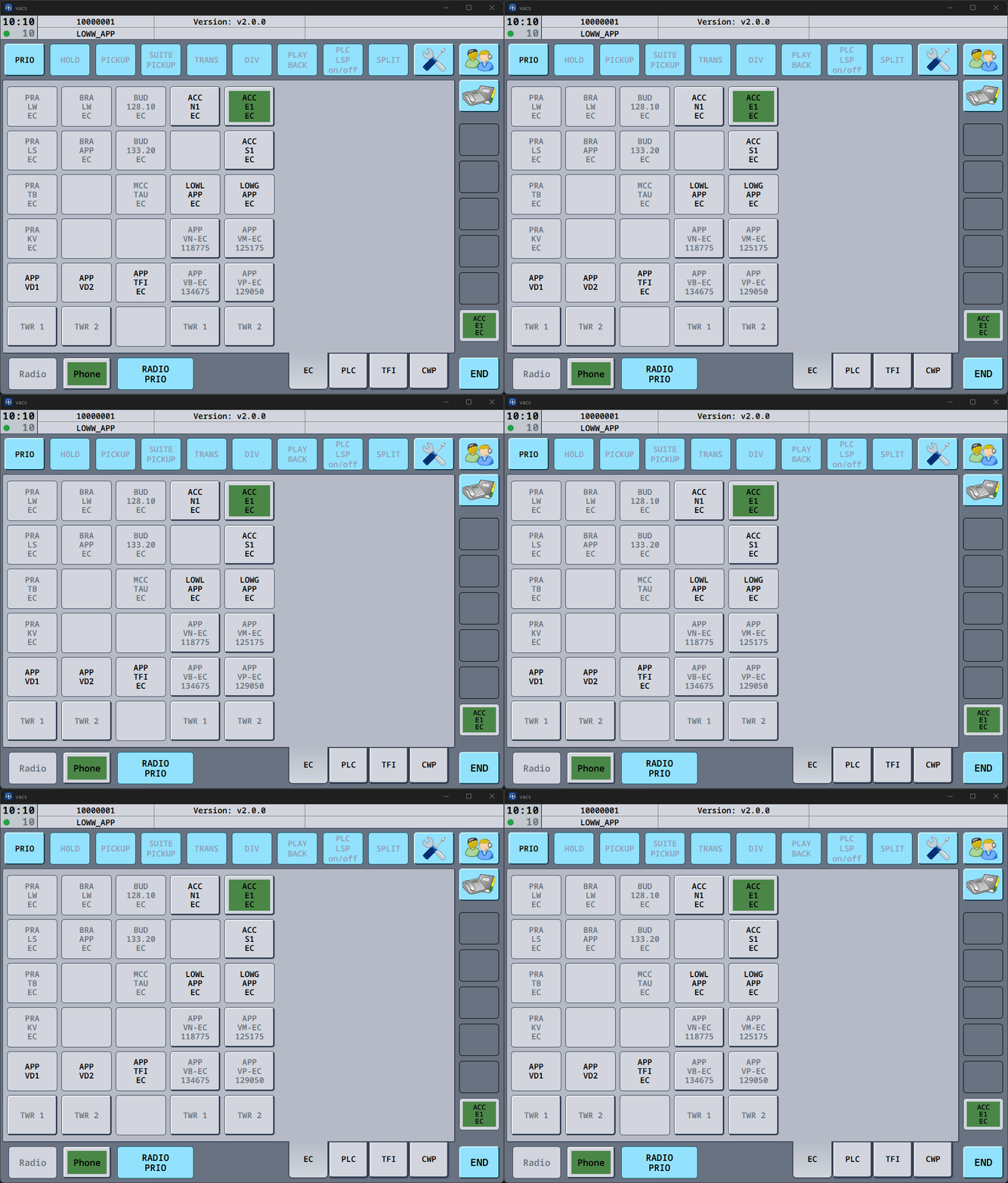
In these cases, vacs will display a call error indication and the corresponding sector button will change its color.
You may simply attempt the call again if coordination is still required.
Ending a Call
To terminate an active call:
- Press the END button in the bottom control bar.
This will immediately terminate the call and return the interface to its normal state.
In a conference call, END only takes you out of the call and the other controllers keep talking. If you are the conference leader, it ends the call for everyone.
Adding Further Sectors
An established call can be extended to further sectors, so that three or more controllers coordinate together. This is done with the CONF button and is described in Conference calls.