Conference calls
Sometimes a coordination needs more than two controllers on the line. vacs lets you add further sectors to a call that is already running, so everyone hears everyone else. This article explains how to build such a conference, who is allowed to change it, and what you see while it runs.
A conference always grows out of an existing call. There is no way to call three sectors at once from a cold start: call the first sector, wait for it to answer, and then add the others.
Adding a sector to a running call
The CONF button in the top button row is the switch for this. It stays greyed out until a call is established and its audio is connected, and it is greyed out for you if somebody else is running the conference.
To add a sector:
- Press CONF. It turns dark blue and starts blinking, which means the next key you press adds a sector to the call instead of starting a new one.
- Press the Direct Access Key of the sector you want to add. It starts ringing there just like a normal call.
Instead of a Direct Access Key you can also use any other way of placing a call: a key on a client page, a CID entered on the Dial Pad, or the Call button in the Telephone Directory or the Call List. While CONF is not blinking, none of these do anything during a call, so you cannot add a sector by accident.
If you press PRIO before adding a sector, its invitation rings as a priority call, exactly like a normal call would.
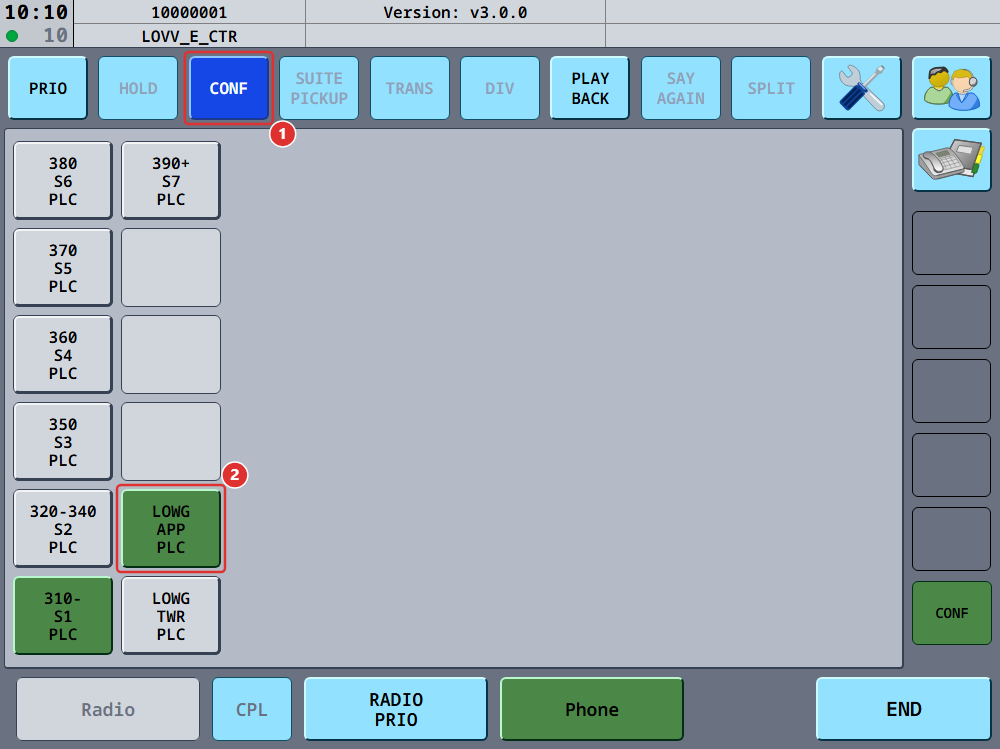
In the screenshot above:
- the CONF button, lit because the call is a conference
- the sector that was added through it, now in the call and shown in green like any other party
Repeat the two steps for every further sector. Do not press the key of a sector that is already in the call: that key now controls the participant behind it, and pressing it removes them or takes you out of the call. See Removing a participant and leaving. Dialing a CID on the dial pad or picking a position in the Telephone Directory that is already in the call does nothing at all.
As soon as you have invited a sector, CONF stops blinking and stays lit, and the call display reads CONF, even while the new sector is still ringing. Pressing CONF again re-opens the blinking mode so you can add the next sector.
Changed your mind while CONF blinks? Press it once more. That leaves the blinking mode without inviting anyone.
If every added sector rejects or does not answer, so that only the two of you are left, CONF goes dark again and the call display shows the other controller's name.
Who may change the conference: the leader
Whoever adds the third party is the conference leader. That is the controller who pressed CONF and grew the call, not necessarily the one who placed the original call.
- Only the leader can add sectors or remove participants. For everyone else the CONF button stays greyed out.
- Leadership never moves to somebody else. It stays with the same controller for the life of the conference.
- If the leader hangs up or loses their connection, the conference ends for everyone.
- If anybody else hangs up, only they leave. The remaining controllers keep talking.
- If the conference shrinks back to two controllers, because participants left or were removed, it is an ordinary call again and has no leader. The call display shows the other controller's name instead of CONF, the CONF button goes dark, and either of you can press it to grow the call again. Whoever does becomes the new leader.
Because the conference lives and dies with its leader, it is worth growing it from the position with the most reliable connection.
How a conference is labeled
A conference is not named after a single controller, so vacs labels it CONF wherever a call name would normally appear:
- on the call display, the bottom slot of the call queue on the right, as soon as a third sector is invited
- in the Call List on the Telephone page, where the Number column lists the CIDs of everyone involved
- on the answer key of an incoming call that is already a conference
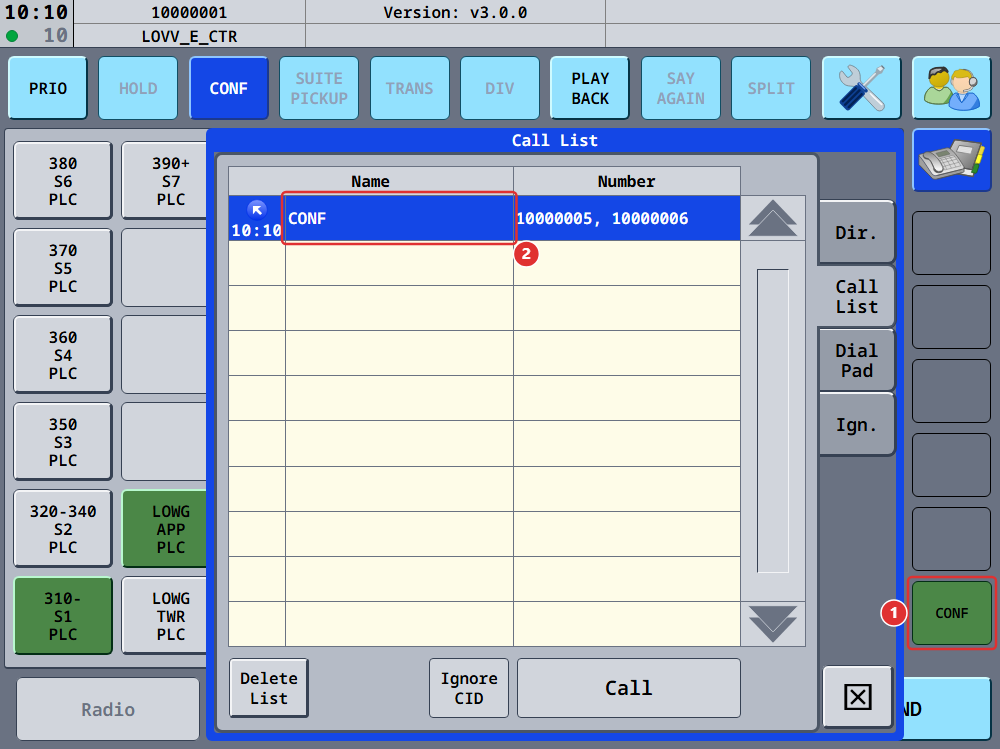
In the screenshot above:
- the call display, labeled CONF
- the same call in the Call List, again labeled CONF
Removing a participant and leaving
As the leader, with three or more controllers in the call, press the key of the participant you want to remove. They are dropped and the rest of the conference carries on.
Everything else about pressing a key that is part of your current call works as it always has:
- If only two controllers have joined, pressing the other party's key ends the call, exactly like a normal call. This is also true while a third sector is still ringing, so cancel that invitation first if you want to keep the call.
- To take back an invitation you sent that is still ringing, press that sector's key.
- If you are not the leader, pressing another participant's key makes you leave the conference. You cannot remove anyone else.
- Pressing a key that shows somebody else's pending invitation does nothing.
The END button always applies to you: it takes you out of the call, and ends it for everyone if you are the leader.
When a sector cannot be added
Not every invitation succeeds. If the sector rejects the call, does not answer, or the call cannot be extended to it, its key is marked and the call carries on without it. For an error, the reason also appears at the right-hand end of the top status bar.
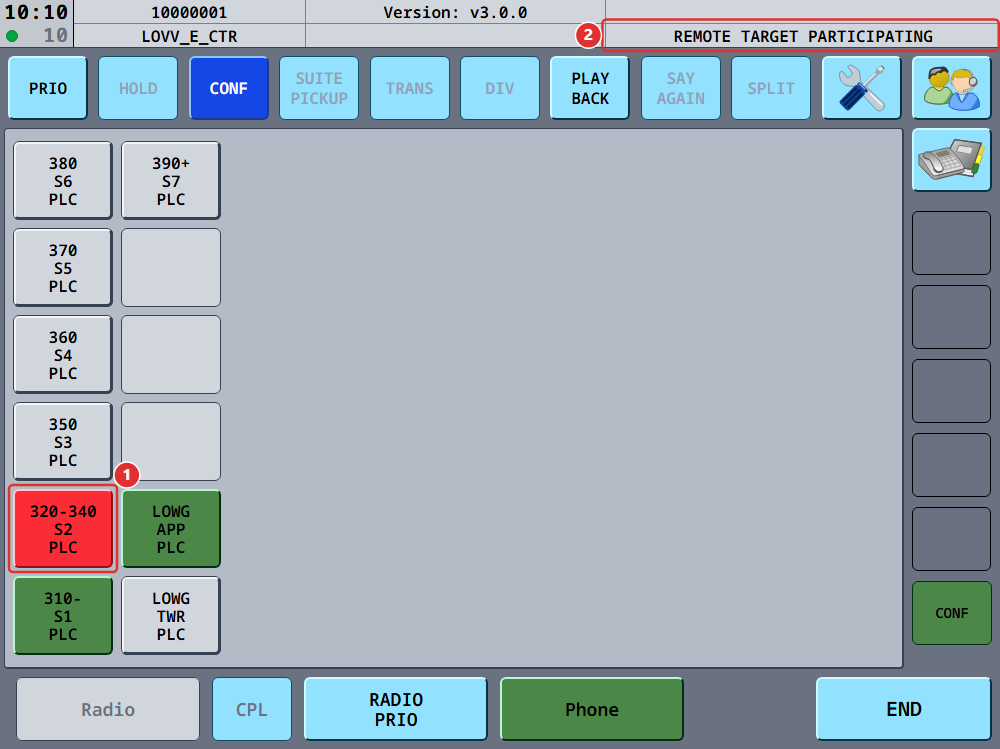
In the screenshot above:
- the sector that could not be added, blinking red
- the reason for it, in the top status bar
Press the marked key to clear the marking. It stays until you do, so a refusal cannot go unnoticed while you are talking.
Sectors are routed to whoever currently covers them, and one controller often covers several. If you add a sector that is already covered by somebody in the call, vacs marks the key and the top status bar reads REMOTE TARGET PARTICIPATING, as in the screenshot above. Nobody is called twice.
Conference size
A conference currently holds up to eight controllers, you included. Sectors that are still ringing count as well: with seven controllers talking and one more sector ringing, the conference is full. The limit is set by the vacs server rather than by your client and may change.
If you try to go past it, vacs tells you so before the invitation is even sent, with a message naming the limit. If the server refuses the invitation itself, the sector's key is marked and the top status bar reads REMOTE MAX CONF SIZE.
Sounds
While a call is running, a controller joining or leaving is announced with its own short sound instead of the usual call start and call end sounds. Both can be turned off separately in the Call Settings.
When you join a conference that is already running, you hear the call start sound once. You do not hear a joined sound for each controller who was already in it.
When one connection in the conference fails
In a conference every controller is connected directly to every other one. A single one of those connections can fail while the rest are fine, for example when one participant's network changes mid-call.
vacs handles this on its own:
- It retries the affected connection over one of our relay servers, which repairs most cases without anyone noticing.
- While it retries, the affected participant is shown as disconnected. The status indicator in the top left corner stays orange even though the rest of the call is healthy, and the call display carries the disconnected icon.
- If both sides still cannot reach each other, the controller who joined the call later is removed from it. For them the key of the controller they could not reach turns red, and the top status bar reads REMOTE NO CONNECTION TO PARTICIPANT. Everybody else keeps talking.
If the removed controller was the conference leader, the conference ends for everyone, as it always does when the leader leaves.
You do not have to do anything while this runs. If a participant disappears from the call this way, place a new call to them once their connection is back.
Receiving an invitation into a conference
Nothing about answering changes: press the flashing answer key. See Receiving a call for what an incoming conference invitation looks like.
As with any call, you cannot accept a second call while one is running. Incoming calls keep ringing, but you have to leave the conference first.