Playback Page
The Playback page lets you review recent radio transmissions received while connected. It is opened by pressing the PLAY BACK button in the top function button row. Playback is only available when using the TrackAudio or Audio for VATSIM radio integration.
The Playback page must be enabled in the Advanced Settings before use. Recording via TrackAudio is supported on Windows and Linux systems using PipeWire; recording via Audio for VATSIM is supported on Windows only. macOS is not supported for either integration.
Currently only received (Rx) radio transmissions are recorded; Tx recording will be supported in a future release. Phone calls are never recorded.
Recordings made via Audio for VATSIM are limited: since AFV does not expose per-transmission metadata, these clips won't show a callsign or frequency (see the recording list below).
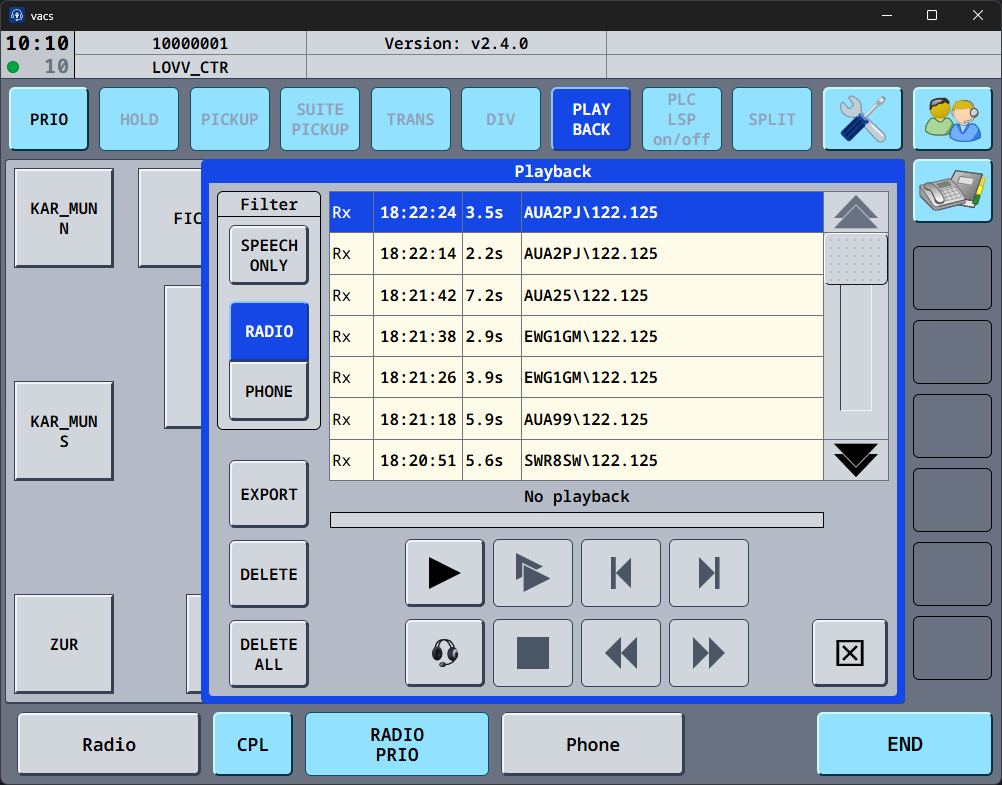
Recording list
The recording list shows all captured transmissions in reverse chronological order. Each entry displays:
- Whether the transmission was received (Rx) or transmitted (Tx), supported in the future
- The time of the transmission
- The duration in seconds
- The callsign(s) and frequency: if multiple callsigns were transmitting during a clip they are separated by pipes (e.g.
AUA123|AUA88\122.125). Clips recorded via Audio for VATSIM show<UNKNOWN>instead, since callsign and frequency information isn't available for that integration.
Clicking an entry selects it for playback, export or deletion.
Filter
The filter panel currently has no functionality.
Controls
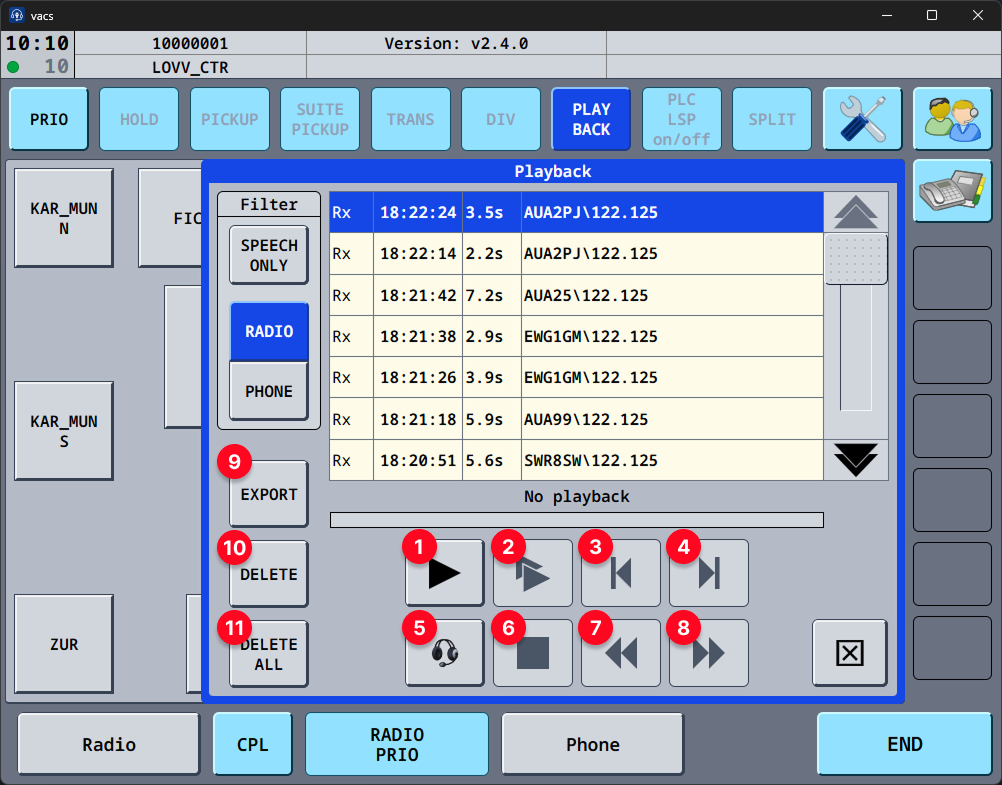
| # | Button | Description |
|---|---|---|
| 1 | Play | Starts playback of the selected recording. Press again to pause; the button blinks while paused. Press again to resume. |
| 2 | Continuous play | Starts playback of the selected recording and automatically advances through subsequent clips. Only available if a next clip exists. Press again to pause; the button blinks while paused. Press again to resume. |
| 3 | Previous clip | Jumps to the previous recording in the list. Only available during playback when a previous clip exists. |
| 4 | Next clip | Jumps to the next recording in the list. Only available during playback when a next clip exists. |
| 5 | Headset / Speaker | Toggles playback output between the headset and speaker device. |
| 6 | Stop | Stops playback. |
| 7 | Rewind | Seeks back 1 second within the current clip. |
| 8 | Fast forward | Seeks forward 1 second within the current clip. |
| 9 | Export | Exports the selected recording. Exported files are saved to %LOCALAPPDATA%\app.vacs.vacs-client\playback\saved on Windows and $XDG_DATA_HOME/app.vacs.vacs-client/playback/saved (or $HOME/.local/share/app.vacs.vacs-client/playback/saved) on Linux. |
| 10 | Delete | Deletes the selected recording. |
| 11 | Delete all | Deletes all recordings. |
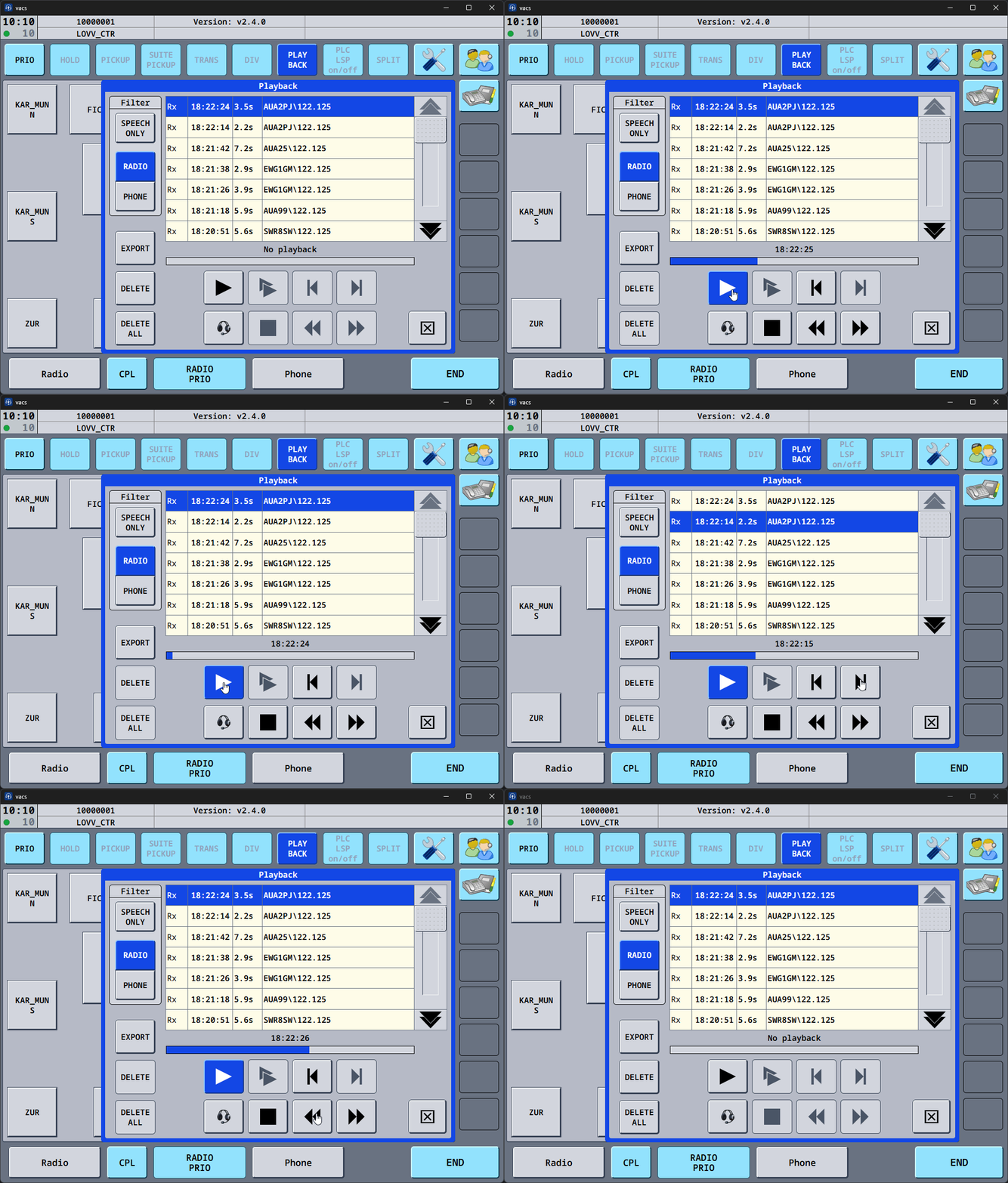
The following demonstrates controls 1-8 in use:
Say Again
SAY AGAIN is a button in the upper function button row, to the right of PLAY BACK. It replays the most recent recorded transmission immediately, so you can hear a readback again without opening the Playback page.

Press SAY AGAIN to replay the newest recording from the start. The button stays blue for as long as it owns the replay, including while the clip is paused from the Playback page, and pressing it again stops the replay. If nothing has been recorded yet, pressing the button does nothing. A transmission that is still in progress is not replayed; only the newest finished recording is.
The clip plays through the output that the headset/speaker toggle on the Playback page currently selects, the headset by default. If the Playback page is open, it shows that same clip as the selected one and reflects that it is playing, so the stop, pause and seek controls there apply to it. Closing the page does not stop a replay started with SAY AGAIN.
The button is greyed out and cannot be pressed under the same conditions that make the Playback page show a notice: radio playback is not supported on your platform, no radio integration is configured, or Enable radio playback is off. While the radio is disconnected the button keeps its normal text but stays inactive until the connection is back. Losing the radio connection also stops a replay that is playing.
From vacs 2.8.0, SAY AGAIN can also be bound to a key or a joystick button in the Hotkeys Config. The binding behaves exactly like the button, including the second press that stops a running replay.