Radio Page
The Radio page integrates with TrackAudio and lets you manage your radio stack without leaving the vacs window. It is available whenever the TrackAudio radio integration is selected, whether or not TrackAudio is currently connected.
The Radio page is currently only available if the TrackAudio radio integration is selected in the transmit configuration. See Transmit Modes for more information.
The page remains inactive if you use the Audio for Vatsim radio integration.
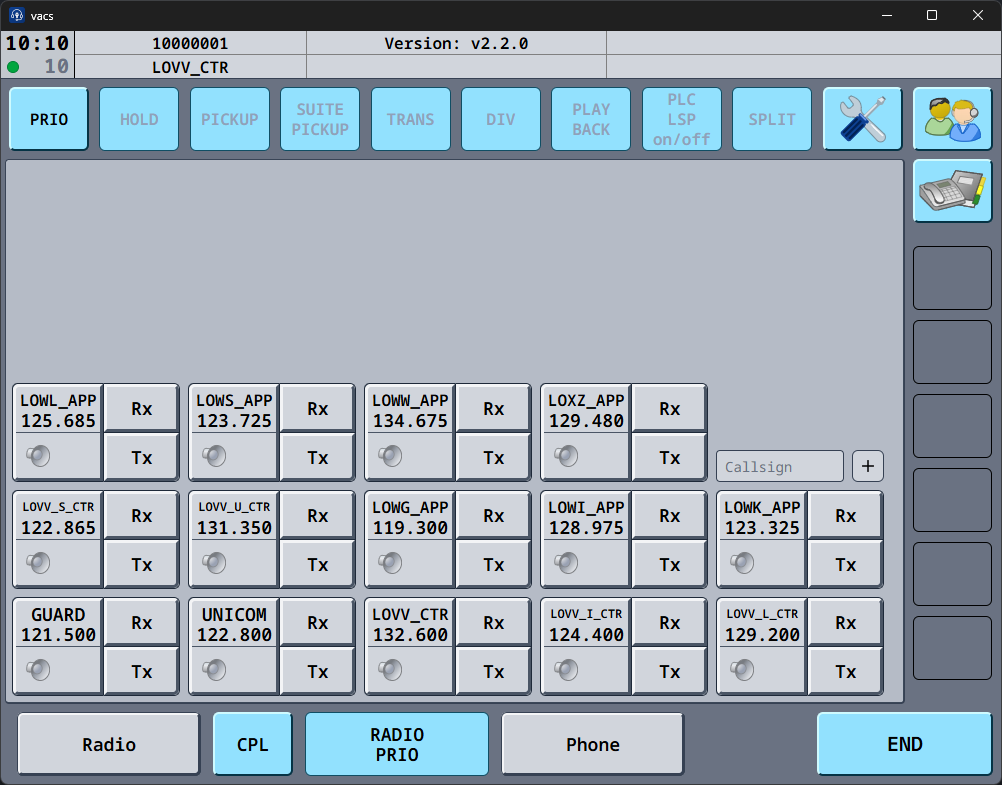
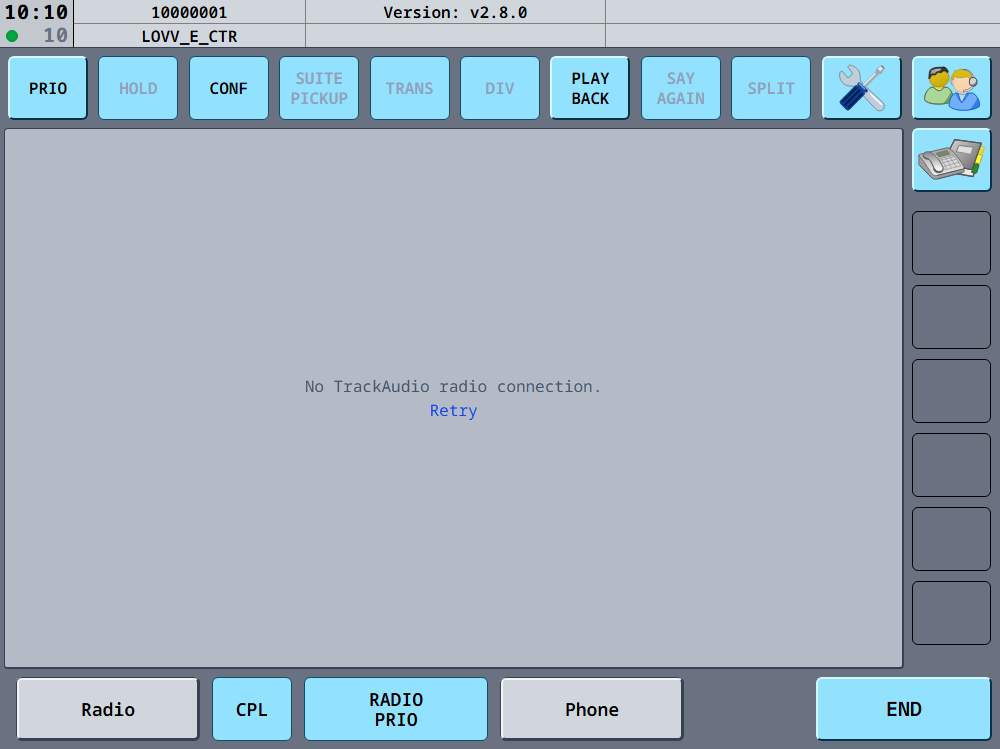
When TrackAudio is not connected
You can open the Radio page even while vacs has no connection to TrackAudio. Instead of your radio stack, the page then shows one of two messages, with a Retry link below it:
| Message | Meaning |
|---|---|
| No TrackAudio radio connection. | vacs is not connected to TrackAudio, for example because TrackAudio is not running yet. |
| TrackAudio radio connection failed. | The connection was lost, or several transmit attempts in a row got no response. This is the same state that turns the Radio button red, see Troubleshooting. |
Click Retry to attempt the connection again. Start TrackAudio and connect it to the network first, otherwise the attempt fails again and the same message stays on the page.
The Radio button in the bottom control bar stays available in this state as well: clicking it opens the Radio page and retries the connection at the same time. The button is only disabled in the "Radio Integration not configured" state, see Radio.
Add a station
To add a station, enter the desired callsign in the text field and hit enter or click the "+" button next to it. Manually adding a frequency is not supported.
This will only add the exact station you entered due to a limitation of the TrackAudio API. Adding all child stations automatically is not possible.
Removing a station is currently not supported due to a limitation of the TrackAudio API.
Frequency Object
A frequency object represents a single station in its current state and controls its usage.
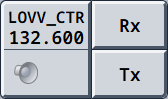
You can toggle receiving and transmitting by clicking either Rx or Tx. Clicking Tx automatically enables Rx.
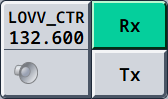
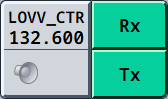
If you actively receive or transmit on that station, the respective button will be blue.
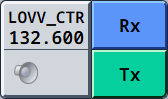
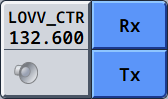
By clicking the speaker icon, audio output can be toggled to the speaker device configured in TrackAudio.
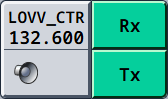
The headset and speaker devices playing the radio transmissions are separate from the ones in vacs and need to be configured in TrackAudio.
Cross Coupling
Two coupling modes are available, configurable in the Advanced Settings.
Original mode — Click CPL to enter Couple Mode, then click the desired frequency objects one by one. Click CPL again to exit Couple Mode. You can also double-click CPL outside of Couple Mode to immediately couple all TX-enabled frequencies at once.
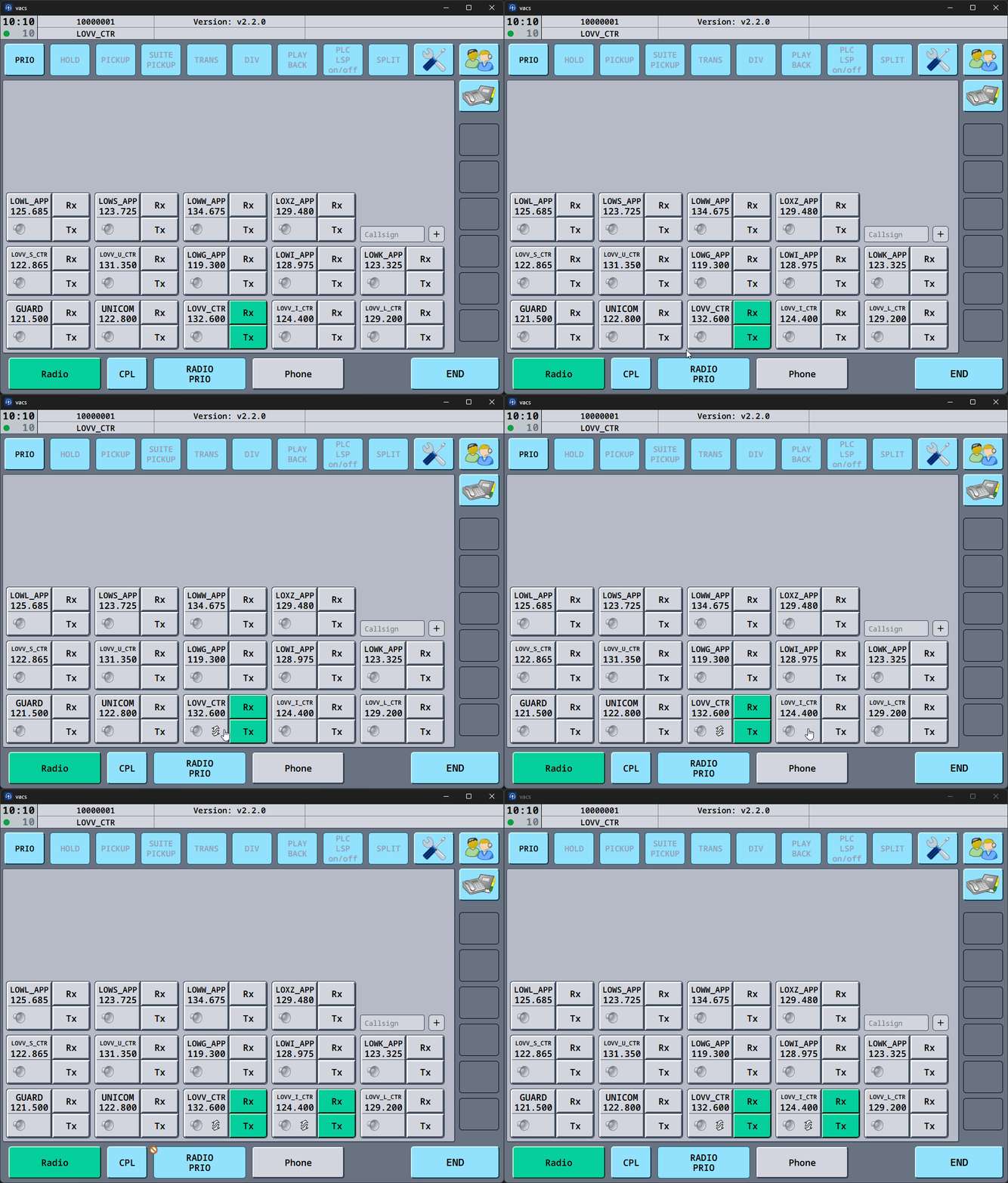
In Original mode, do not click the Rx, Tx or speaker button when selecting frequencies to couple — click the left side of the frequency object instead.
Cross coupling automatically enables Tx and Rx.
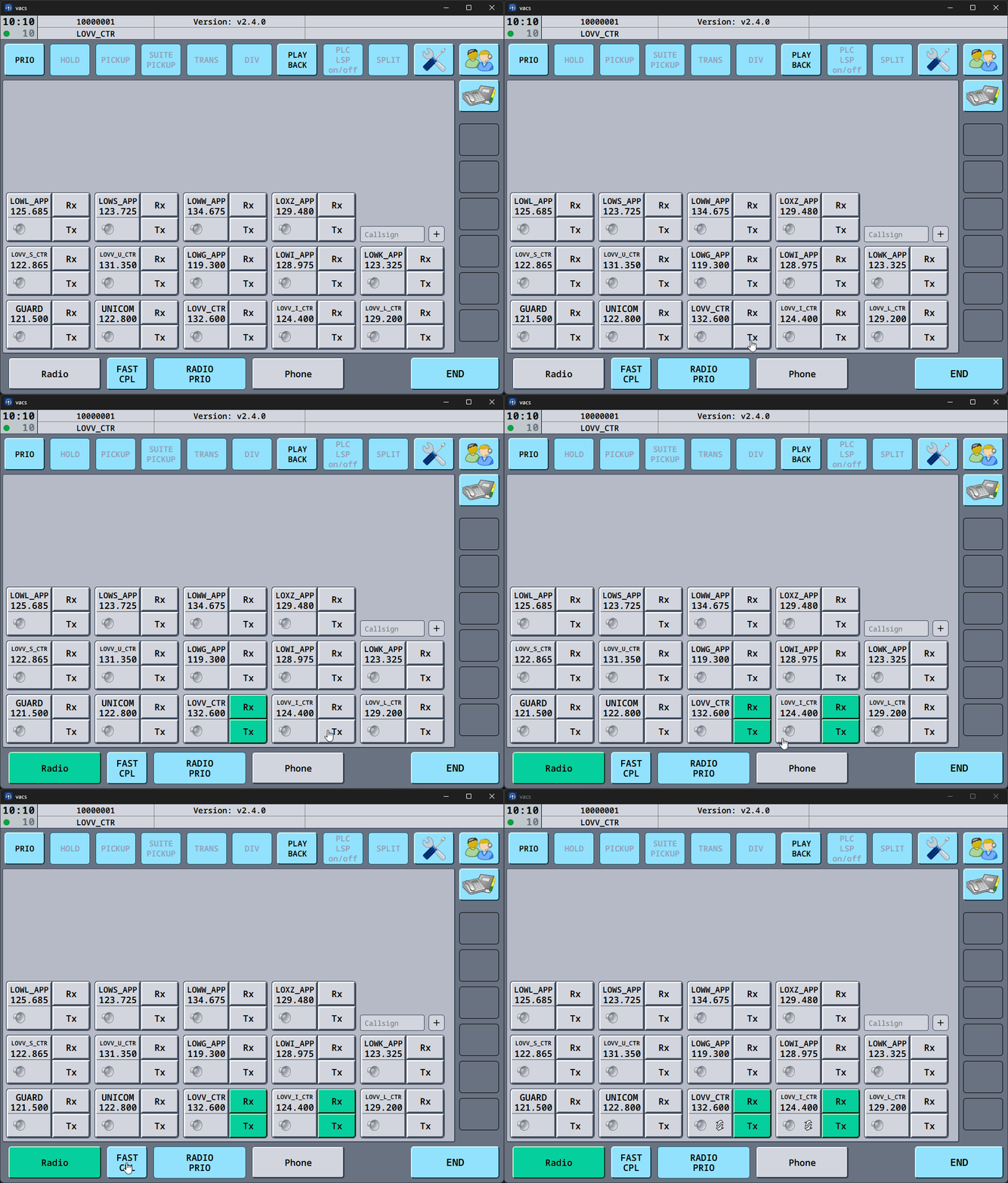
Fast mode — Click FAST CPL to immediately couple all TX-enabled frequencies at once, without entering Couple Mode. The button label changes from CPL to FAST CPL when this mode is active. To uncouple an individual frequency in Fast mode, toggle its TX off.
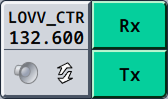
A cross coupled frequency is indicated by two arrows next to the speaker.
Troubleshooting
The radio button turned red
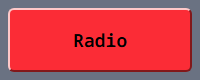
The radio button turns red when vacs has lost its connection to TrackAudio, or when several transmit attempts in a row got no response from TrackAudio. The second case is the important one: your radio PTT is pressing, but nothing is reaching TrackAudio, and nothing else on screen would tell you.
Click the red button to reconnect. This re-establishes the link to TrackAudio and clears vacs's transmission state, so it is also the right first step if PTT feels stuck.
PTT no longer transmits, and only reconnecting TrackAudio helps
If your radio PTT stops transmitting after a while, the radio button stays its normal color, and the only thing that brings it back is disconnecting and reconnecting TrackAudio itself, then the problem is on the TrackAudio side rather than in vacs.
In this situation TrackAudio does receive the key press from vacs and reports back that it has started transmitting, but no audio reaches the network. vacs has no way to see past that point, so it cannot detect or fix it. Reconnecting TrackAudio's voice connection clears it.
If you hit this, it is worth reporting to the TrackAudio developers with a TrackAudio log covering the affected period. A vacs log alone can only show that vacs sent the transmission and TrackAudio acknowledged it.