Overview
This page provides a complete overview of the vacs interface, including layout structure, button groups, basic call handling and basic call source selection.
General Layout
The interface is divided into several functional areas:
Top Status Bar
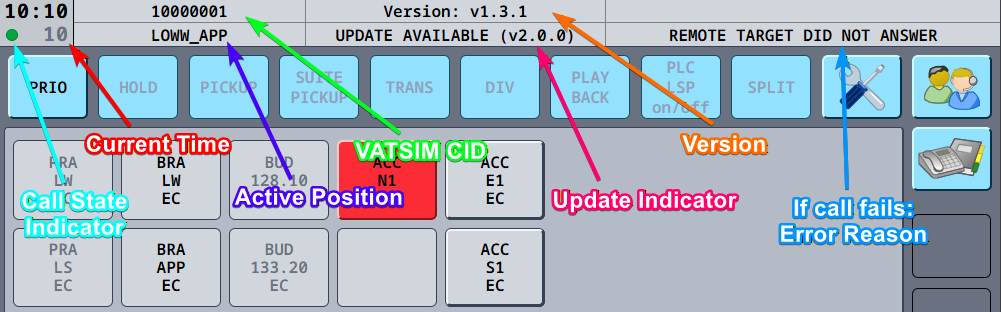
The top bar displays:
- The current time
- The VATSIM CID used for your vacs connection
- The active station (e.g., 'LOWW_APP')
- The running vacs version
- (If you are not using the latest version, that an update is available.)
The small status indicator in the top-left corner shows call state:
- 🟢 Green → Ready / Connected
- 🟠 Orange → Connecting, reconnecting, or connected without incoming audio
- ⚫ Gray → Idle / Not connected
This can also be supplemented by an audible indication. For futher information, see Call Settings.
If the indicator stays orange on a call that is otherwise established, the call is not delivering audio to you. A muted speaker icon on the call in the call sequence marks which call is affected. See One-way audio.
Function Buttons
The upper button row contains operational controls such aus:
- PRIO: Initiate PRIO Calls, see below.
- HOLD
- PICKUP
- SUITE PICKUP
- TRANS
- DIV
- PLAYBACK
- SAY AGAIN
- SPLIT
Of these buttons, PRIO, PLAYBACK and SAY AGAIN are functional; the rest are not simulated yet.
SAY AGAIN replays the most recent recorded radio transmission without leaving the page you are on. See Say Again for what it does and when it is available.
A PRIO Call indicates to the reciever of the call, that the caller considers this call to be urgent. It is highlighted with a yellow border in the recievers vacs, and uses a special sound, to gain attention.
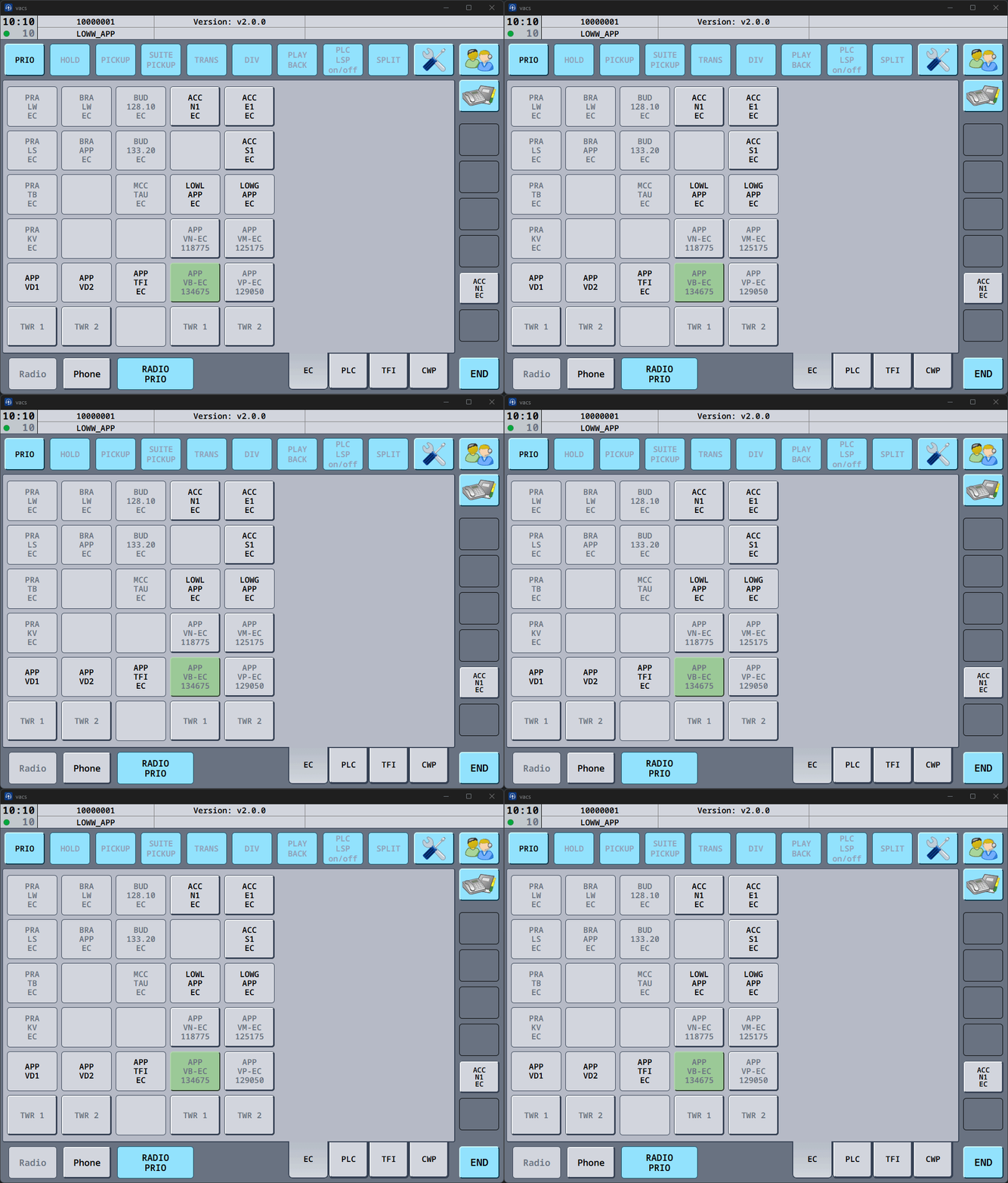
PRIO-Calls can be disabled, see Call Settings.
Direct Access Page
For clarity within this documentation, the following terms are used:
- Direct Access Page → The central station grid containing all available coordination positions.
- Direct Access Key → An individual station button within the Direct Access Page used to initiate or receive calls.
These terms are used consistently throughout the documentation.
The direct access page contains all available coordination stations.
Each title represents one station and my appear in different states:
- Button that does not reference a station (disabled button with grey text).
- Station that is online and callable (enabled button with blank text).
- Button referencing a station not currently online on vacs (disabled button with black text).
- Station currently controlled by your position (enabled button with grey text).
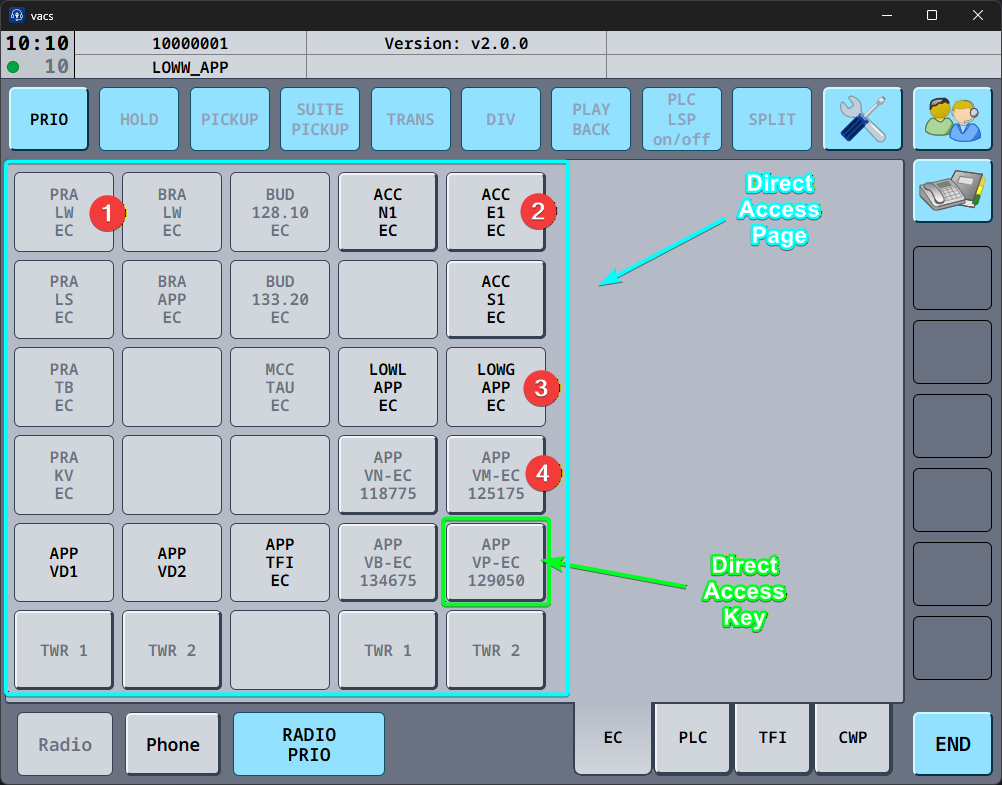
The direct access page is the primary interaction area for initiating and receiving calls.
Bottom Control Bar
The lower section contains further buttons, which are important during the useage of vacs.

Radio
The Radio button indicates the current state of the Radio Integration and allows reconnecting when necessary. The button color and state reflect the current radio status.
| Button Color | Text Color | Enabled | State | Description |
|---|---|---|---|---|
| Gray | Gray | Disabled | Radio Integration not configured | Radio Integration is set to None, or the required Radio PTT key is missing (e.g., no key captured for Voice Activation, or no pseudo-PTT key configured for Audio for VATSIM). |
| Gray | Black | Enabled | Not connected | Radio integration is configured, but no connection to TrackAudio exists. Click the button to retry the connection; with TrackAudio it also opens the Radio page, which then offers a Retry link. (In Audio for VATSIM this state usually does not occur.) |
| Gray | Black | Enabled | Connected, no RX | A connection to the radio client exists, but no frequency is currently being received. (In Audio for VATSIM this state usually does not occur.) |
| Emerald | Black | Enabled | Idle | At least one frequency is tuned and ready, but nobody is currently transmitting and you are not transmitting. |
| Cornflower Blue | Black | Enabled | Active transmission | Either you or someone else (pilot, other station in general) is currently transmitting on the tuned frequency. |
| Red | Black | Enabled | Error | The connection to TrackAudio was lost, or several transmit attempts in a row got no response from it. Click the button to reconnect, see Troubleshooting. |
CPL
The CPL button is used to cross couple radio frequencies. See the Radio page documentation for a full explanation of how coupling works and the available modes.
The functionality is only available if TrackAudio radio integration is used and a connection to TrackAudio is established.
RADIO PRIO
This button always affects your call microphone according to your chosen Call Mic Mode, and additionally couples with your Radio Integration if one is configured. For a full breakdown of every combination, please refer to Transmit Modes.
Phone
The Phone button provides quick navigation back to the main phone interface and indicates active phone communication.
| Button Behavior | Description |
|---|---|
| Grey | When no phone call is active, the button remains unchanged (grey). |
| Solid green | When a phone call is active, the Phone button lights up continuously in green, matching the call display. |
On click behavior
Clicking the Phone button always navigates back toward the top level of the phone interface.
| Current Location | Result |
|---|---|
| Inside any menu (e.g. settings page, sub-settings page, mission page, telephone directory) | The interface exits the current menu and returns to the phone interface. |
| Inside a tabbed profile | The interface navigates one page level upward within the tab structure. |
| Inside a non-tabbed profile | The interface navigates directly to the top-level page. |
| Already on the top level | The fallback profile is displayed. |
END
The END button is used to terminate calls and to exit menus, returning the interface toward the main level.
| Button Behavior | Description |
|---|---|
| Static | The END button does not change its appearance and does not indicate any state. |
On click behavior
Clicking the END button performs two actions depending on the current interface state.
| Current Situation | Result |
|---|---|
| Active outgoing call | The outgoing call is cancelled. |
| Active call | The call is terminated. |
| Rejected / error call display | The call entry is cleared from the display. |
| Inside any menu (e.g. settings page, sub-settings page, mission page, telephone directory) | The interface exits the current menu. |
| Inside a tabbed profile | The interface navigates one page level upward within the tab structure. |
| Inside a non-tabbed profile | The interface navigates directly to the top-level page. |
| Already on the top level | The fallback profile remains displayed. |
Tabs (Tabbed Layout)
If you are using the Tabbed-Layout, the pre-configured tabs will be visible in the right part of the Bottom Control Bar.
Split and Cycle Views
Most profiles show the radio page and the phone page one at a time, and you switch between them with the Radio and Phone buttons. A profile can instead ask for one of two views that let you keep both in sight. Which view you get is part of the profile your FIR publishes, so there is nothing to configure in vacs, and neither view has anything to do with the unimplemented SPLIT key in the upper function key row.
Both views require the TrackAudio Radio Integration and a tabbed profile. With Audio for VATSIM, or without a radio integration, such a profile behaves like any other and keeps the Radio and Phone buttons.
Split view replaces the Radio and Phone buttons with two tabs:
| Tab | Shows |
|---|---|
| Phone | The phone page across the whole main area, as usual. |
| Radio | The radio page on the left and the direct access keys of the phone page on the right. This is the mixed view. |
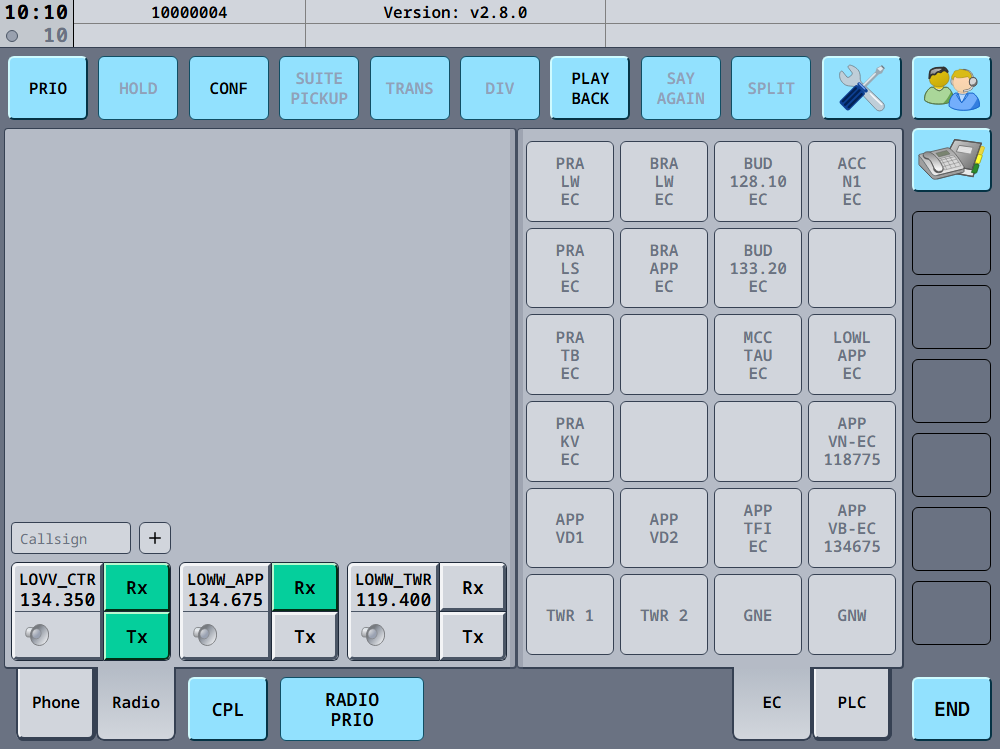
Cycle view replaces the Radio and Phone buttons with a single Page button carrying three cells, R, P and M. Every click moves one step on: R for the radio page, P for the phone page, M for the mixed view. The cell of the page you are on is highlighted.
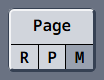
With either view, vacs opens the mixed view when the profile loads. Selecting the Radio tab, or stepping to R or M, also retries the TrackAudio connection if it is currently down.
The divider
In the mixed view, the two pages are separated by a divider you can move. It stays invisible until you point at the gap between the pages, where it shows up as a gray bar and the cursor changes to a left-right arrow. Drag it with the mouse or your finger to give the direct access keys more or less room; the radio page takes whatever is left. The keys can be narrowed down to a single column, and the radio page always keeps enough space for one frequency object.
Double-click the divider to put it back to the default width of four key columns. vacs remembers the width you set for each profile separately, including after a restart.
In these profiles the direct access keys are slightly narrower than usual, so more of them fit next to the radio page. If a tab still has more key columns than fit, the page scrolls sideways.
Call States
Incoming Call
When a station calls you:
- The calling station is highlighted.
- The call can be accepted by clicking on one of the blinking green buttons.
- Visual and audible feedback indicates, that the call has been established (sound + green indicator).
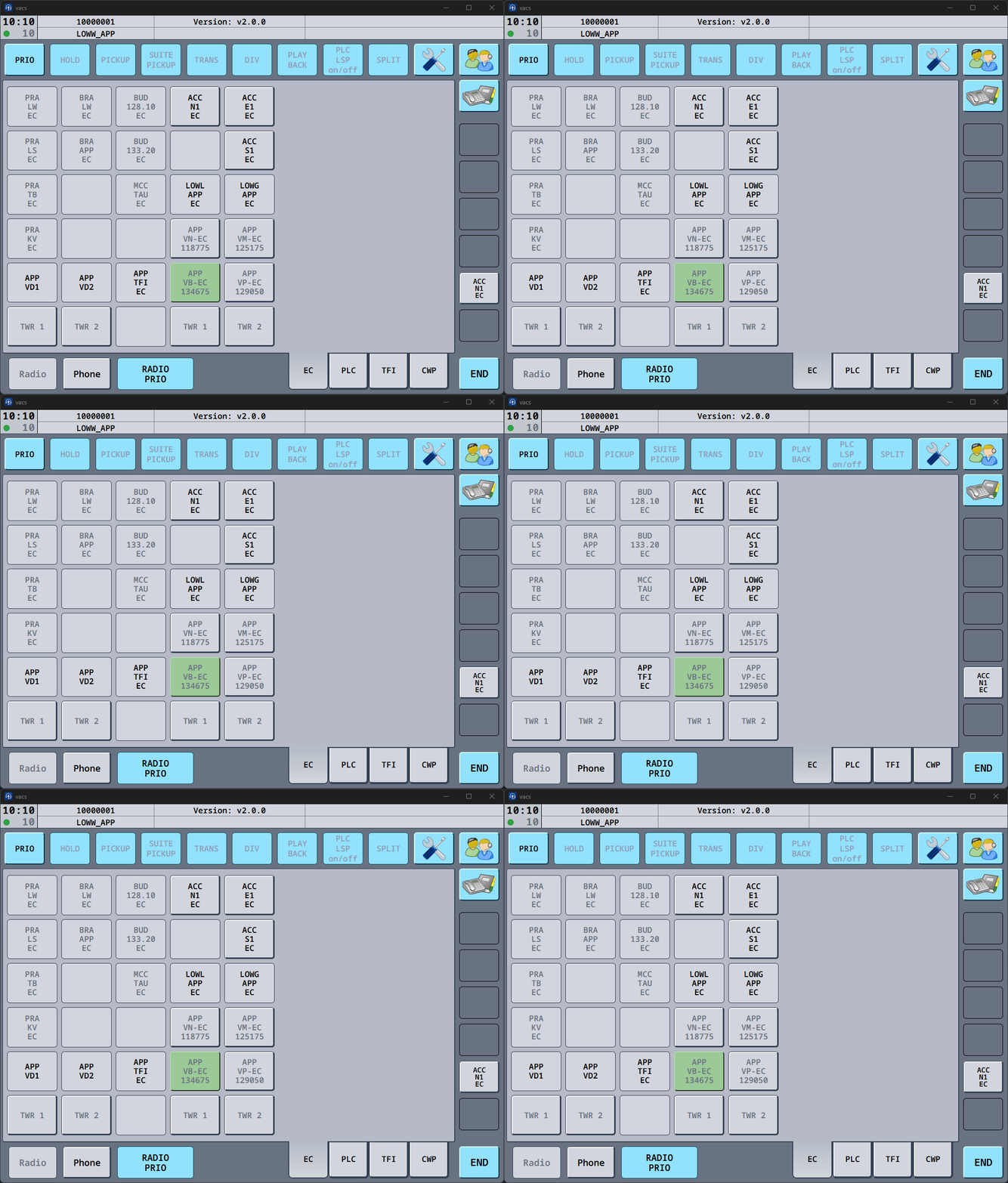
In the shown example, the sector ACC N1 EC (Caller) calls APP-VB EC (Recipient).
Outgoing Call (No Call Source)
In the simplest terms initating a call in vacs (which is without selecting a specific source, for that, see below) can be done as follows:
- Click the Station you intend to call.
- This corresponding button will be displayed in green with a grey border, until the recipient of the call has picked up. The button will then turn green without a grey border.
- As no recipient was selected in this case, a generic sector identifier is displayed as call origin on the recipients end. Here this would be LOWW APP.
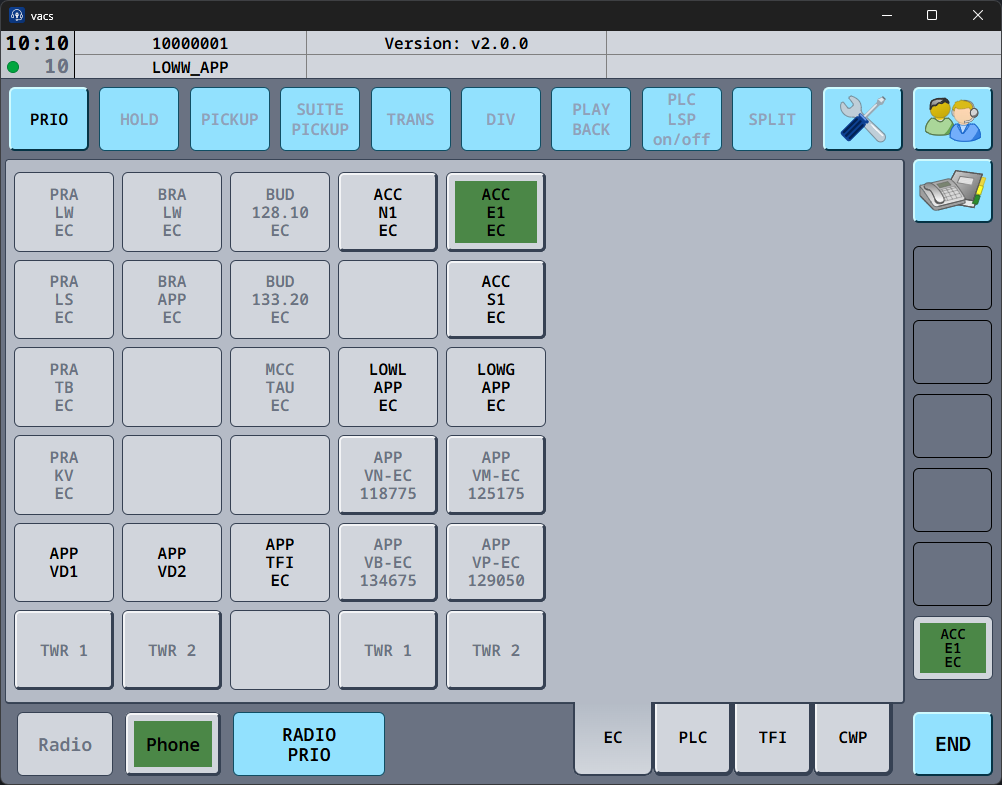
In the shown example, the sector ACC E1 EC (Recipient) is being called without manually selecting a source.
Call Source Selection
vacs allows selecting the originating station (call source) for outgoing calls. By using this, the recipient of your call, recieves a more precise description of the caller, rather than just a generic identifier of your position (e.g. APP-VB PLC instead of LOWW APP).
The selected call source is indicated in orange color on the direct access page:
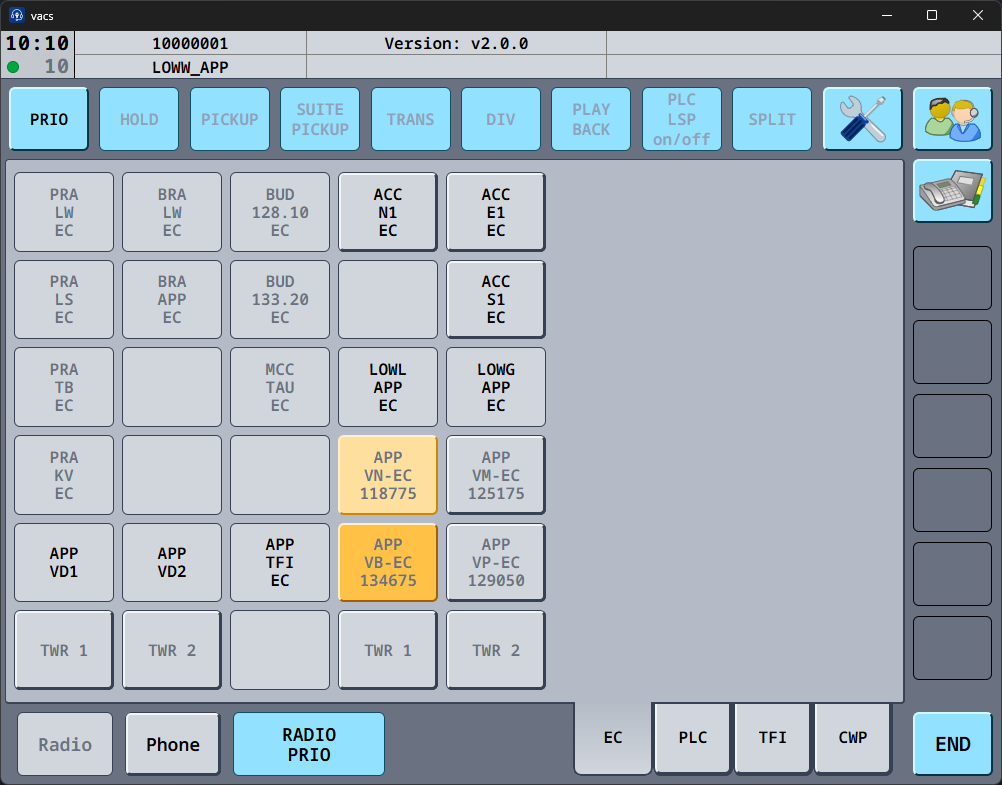
There are two different types of call sources:
- Fixed Call Source (indicated in dark orange, APP VB-EC in this screenshot).
- Temporary Call Source (indicated in light orange, APP VN-EC in this screenshot).
These will be discussed in the following subchapters.
Fixed Call Source
The fixed call source (APP VB-EC in the screenshot above) is the default station used for outgoing calls.
It remains active until manually changed.
Temporary Call Source
A temporary call source (APP VN-EC in the screenshot above) can be selected for the next call only.
After the call ends, vacs automatically reverts to the fixed call source, if available.
:::tip Recommended Configuration It is recommended to configure a fixed call source representing the station you most frequently call from.
This ensures that outgoing calls use the correct caller by default and avoids the need to manually select a call source for every call. :::